How to configure a Microsoft Viva Engage feed for digital signage
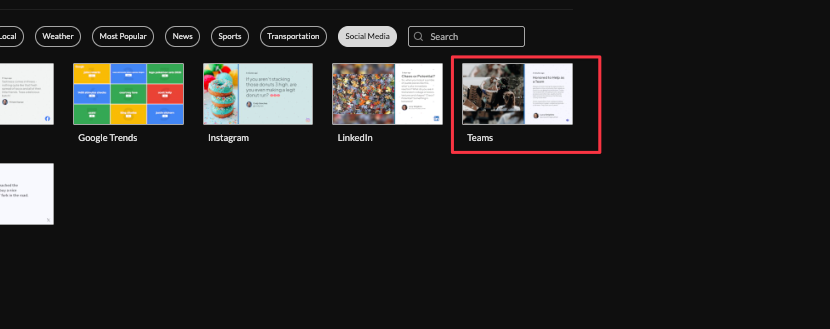
Begin configuring your Microsoft Viva Engage (Yammer) feed from the content menu by selecting the Microsoft Viva Engage tile.
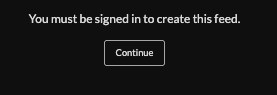
Sign in to a Screenfeed account to continue, Click continue to sign in or set up a new Screenfeed account.
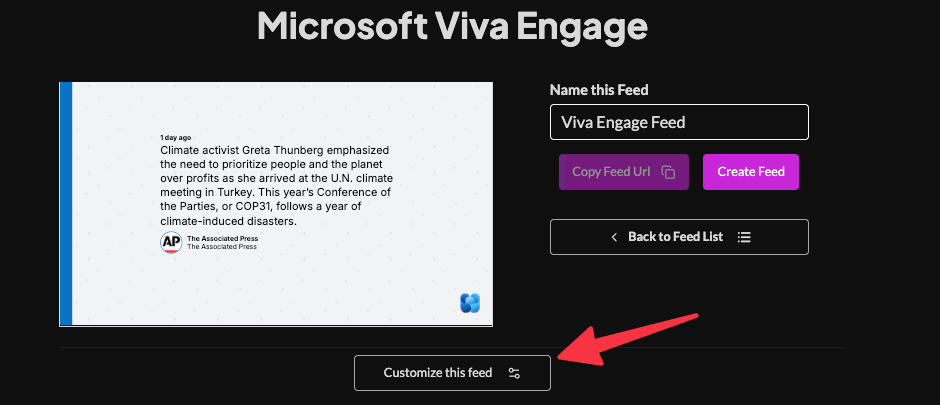
Set a custom name, and click "Customize Feed".
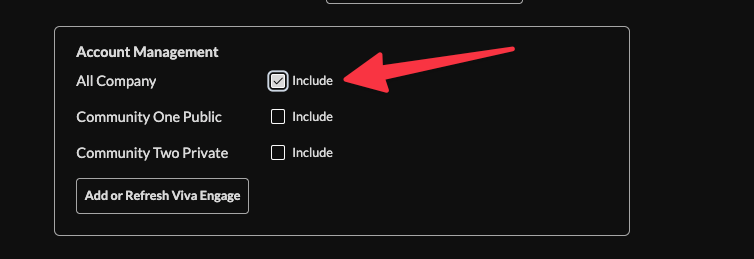
Click "Add or Refresh Viva Engage"

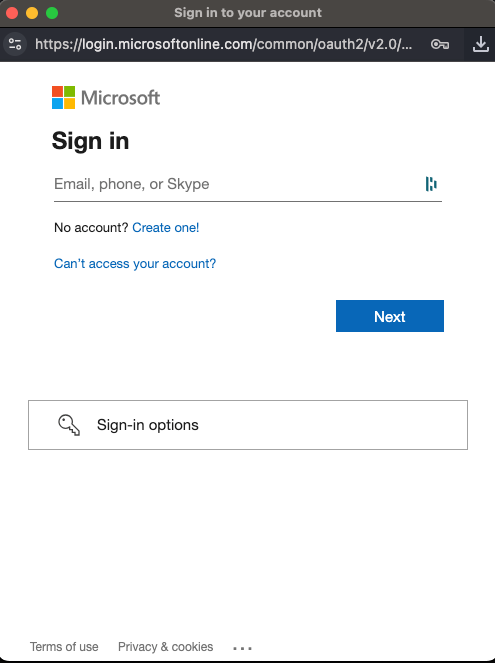
Enter your Viva Engage credentials ( This uses Microsoft authorization including any 2 factor authentication enabled), and authorize the application. You must be a Microsoft account administrator to approve.
Check the box next to the Communities you want to include. Community names are listed alphabetically by name.
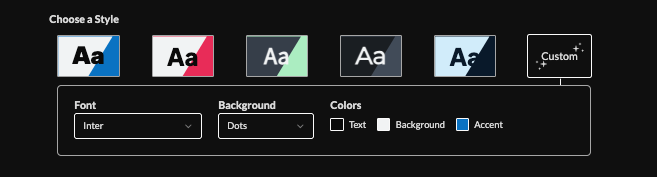
Choose a style (Preset or Custom) to adjust fonts, background patterns, and colors.
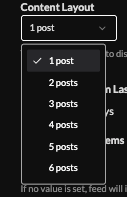
Select number of posts per content view
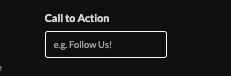
Set a call to action
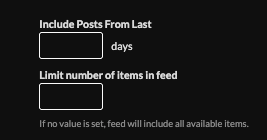
Scope the posts (limits on history/items),
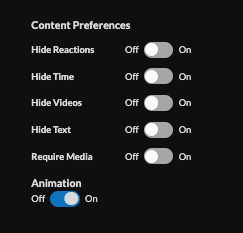
Set content preference, hide or show time, videos, text or require media, and enable/disable animations.
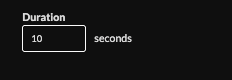
Set duration (default 10s per content view)
Set an intro style, background, and message. Learn more about the intro options from this link. www.screenfeed.com/support-articles/intro-options

Set a delivery method (HTML, Media RSS, Direct URL, Json, XML).
Learn more about advantages to each delivery method here www.screenfeed.com/support-articles/delivery-methods-available

Click "Create Feed".
Support available between 9:00am and 5:00pm (CST-06:00), Monday through Friday


