Step by step instructions on how to configure an Friendly News in Pictures feed from Screenfeed to show audience friendly news on your digital signage software.
1. Begin configuring your feed from the content menu by selecting the Friendly News and Pictures tile.
2. Toggle content views in the preview and set a custom name.
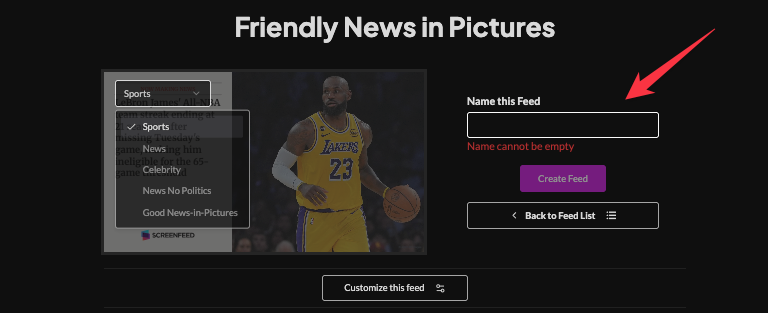
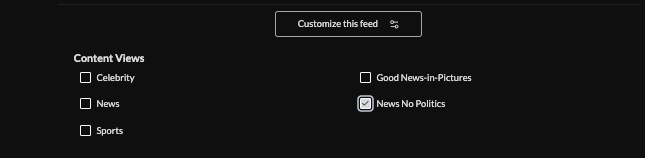
3. Click "Customize This Feed" and check content views to include (Celebrity, Sports, Good News in Pictures, News - No Politics). Stories from each content view selected will be included in the feed.
4.Select a theme (minimalist, block, party, or classic).

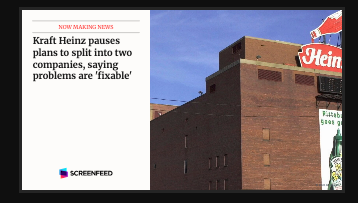


5. Choose a style (Preset or Custom) to adjust fonts and colors.
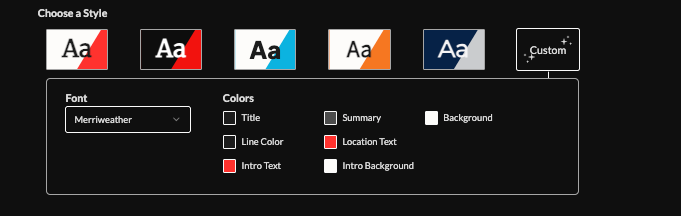
6. Optionally hide logos, align text to the bottom of the screen.

7. Set an intro style, background, and message. Learn more about the intro options from this link. www.screenfeed.com/support-articles/intro-options

8. Upload your own logo

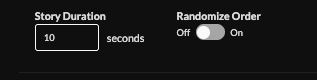
9. Set story duration (default 10s), or randomize the order of stories.
10. Set delivery method (HTML media, RSS, direct URL, Json data)Learn more about advantages to each delivery method here www.screenfeed.com/support-articles/delivery-methods-available

11. Click "Create Feed".
Support available between 9:00am and 5:00pm (CST-06:00), Monday through Friday


