How to configure an AP News Feed for your digital sign

2. In the new window set a custom name for the feed on the right and click the "Customize Feed" button.
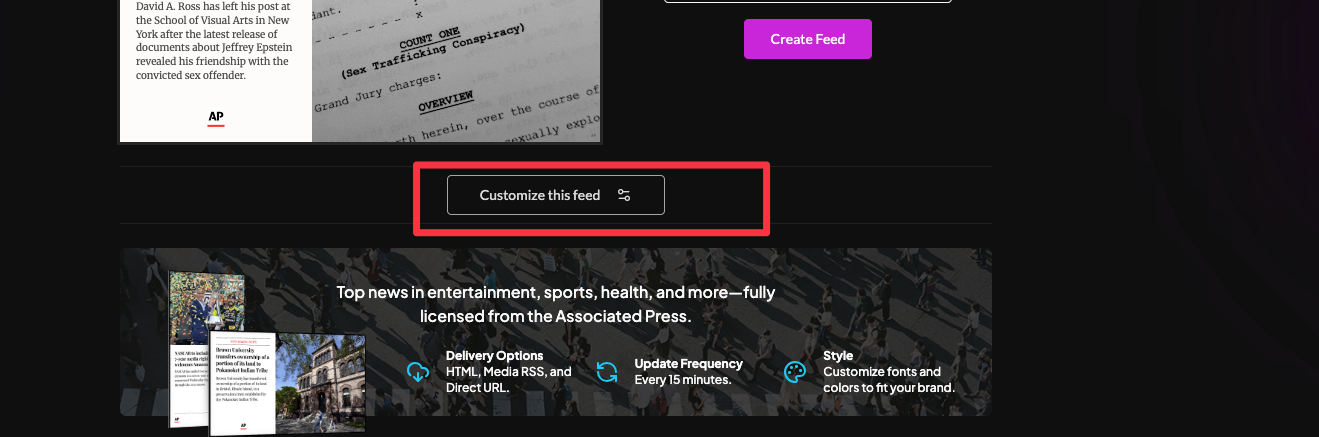
3. Click the "All Languages" button to filter by language.
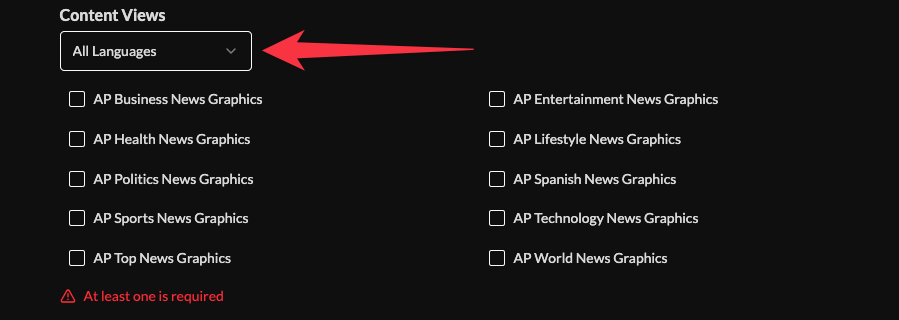
4. Select the radio button associated with each content view to add it to your feed.
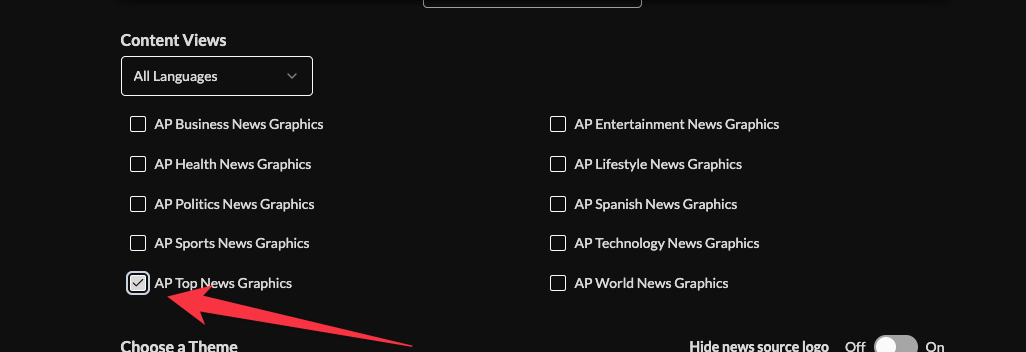
Available views include: Business news, Entertainment, Health news, Lifestyle, Politics, Spanish news, Sports news, Technology news, Top news, and World news.
5. Select a theme (minimalist, block, party, or classic).
The preview in the top left of the window will show design changes, based on your selection.
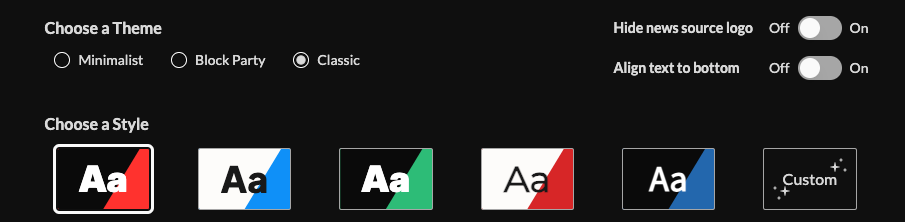
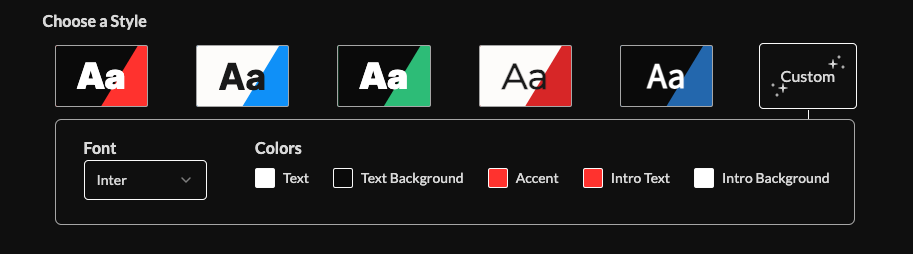
6. Choose a style using preset buttons or the "Custom Style" tile to adjust fonts, colors, intro, summary, and background.
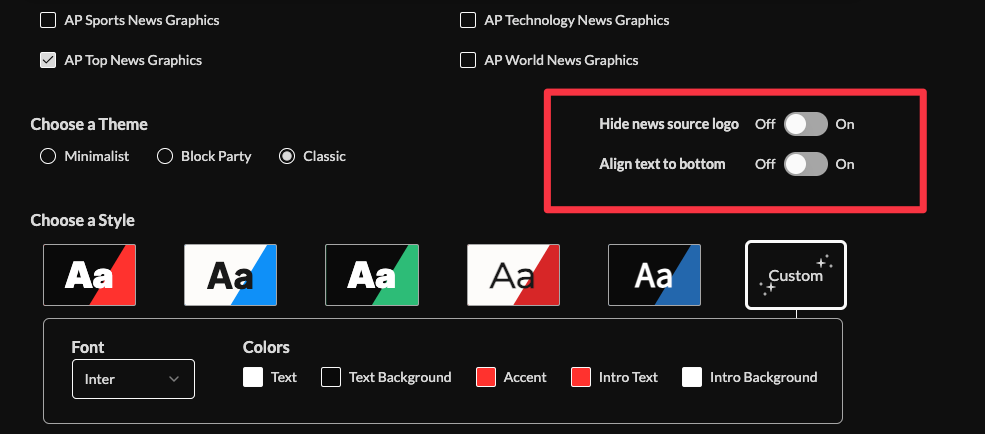
7. Optionally hide the news source logo or header.
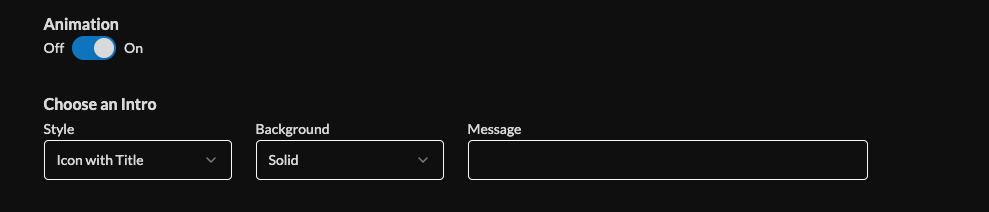
8. Enable or disable animation using the toggle button, then set your intro style, background, and message. Learn more about the intro options from this link. www.screenfeed.com/support-articles/intro-options
9. Optionally upload a logo, set the story duration (default is 10s), and select if you want to randomize the story order.
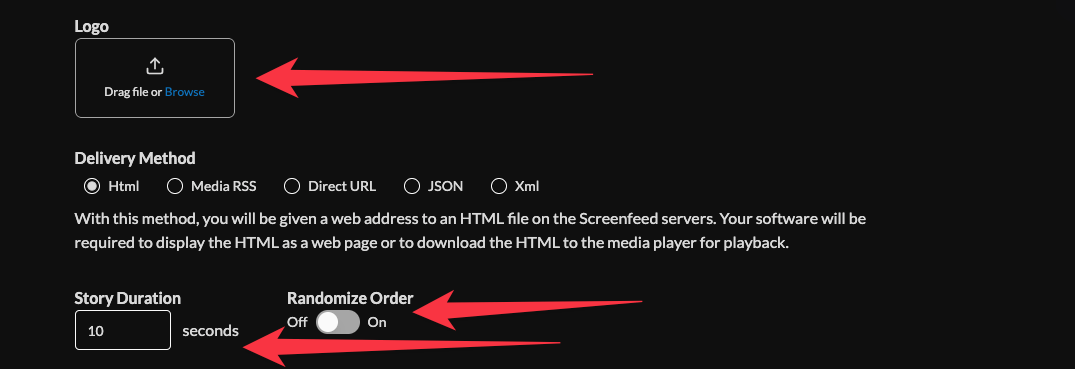
10. Select your delivery method (HTML media, RSS, direct URL, Json, or XML data).Need help picking a delivery Method Learn more about advantages to each delivery method here www.screenfeed.com/support-articles/delivery-methods-available

11. Click the Create Feed button to create your news feed.
Support available between 9:00am and 5:00pm (CST-06:00), Monday through Friday


