How to configure a Flight Board feed for your digital sign
1. Begin configuring your Flightboard feed from the content menu by selecting the Flight Board tile.
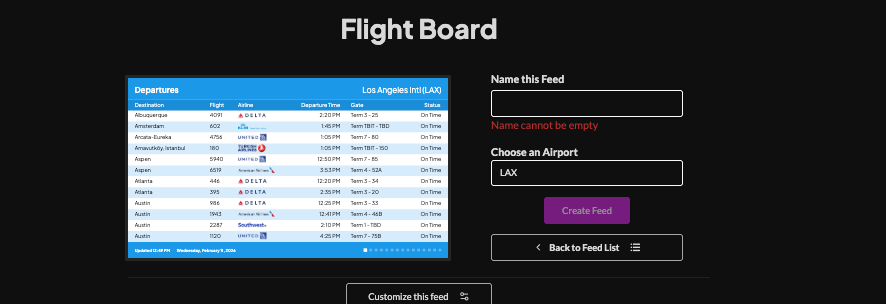
2. A live preview of changes to your feed appears on the left. Set a custom name on the right.
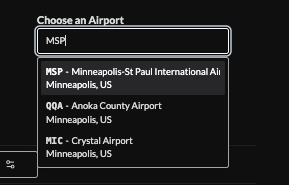
3. Choose an airport by code or city name.
4. Click "Customize this Feed" and set the flight type (departures or arrivals).

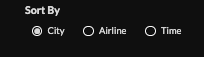
5. Set the sorting by city, airline, or time
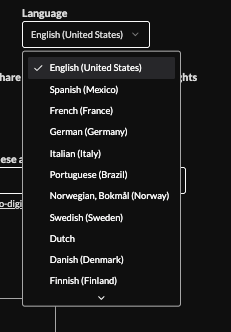
6. Set the language.
(English, Spanish, French, German, Italian, Portuguese,Norwegian Bokmål, Swedish, Dutch, Danish, Finnish, Japanese,Croatian, Czech, Slovak or Russian)
7. Optionally filter by terminal/gate. Enable displaying flight codeshare status, or limit to delayed status only.

8. Optionally elect to Ignore or include specific airlines.

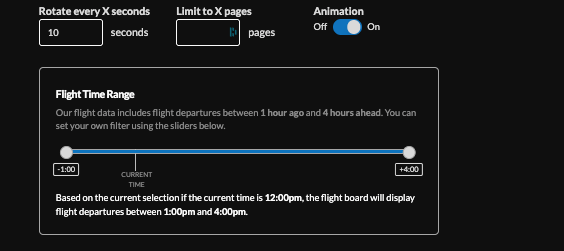
9. Set rotation time, limit pages, enable/disable animation, and set flight time range.
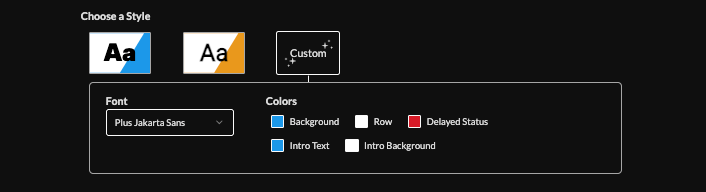
10. Choose a style (Preset or Custom) to adjust fonts and colors. Changes will appear in the preview window.
11. Set an intro style, background, and message. Learn more about the intro options from this link. www.screenfeed.com/support-articles/intro-options

12. Select the delivery method (HTML Media RSS, direct URL).Learn more about advantages to each delivery method here www.screenfeed.com/support-articles/delivery-methods-available

13. Click the "Create Feed" button.
Support available between 9:00am and 5:00pm (CST-06:00), Monday through Friday


