Support
Using Ready-Made Feeds
Configuration

Weather Graphics

How to configure a Weather Graphics feed for your digital sign

Table of Contents

Get content powered by data that keeps up with the forecast. Local weather conditions update every 15 minutes, and you can choose between displaying current, day-part, daily, 5-day or 10-day local forecasts. Celsius and Fahrenheit available.
Keywords:
Weather, Current Conditions, Forecast, Global, Local, Geolocated
Try it out

Weather Graphics Feed

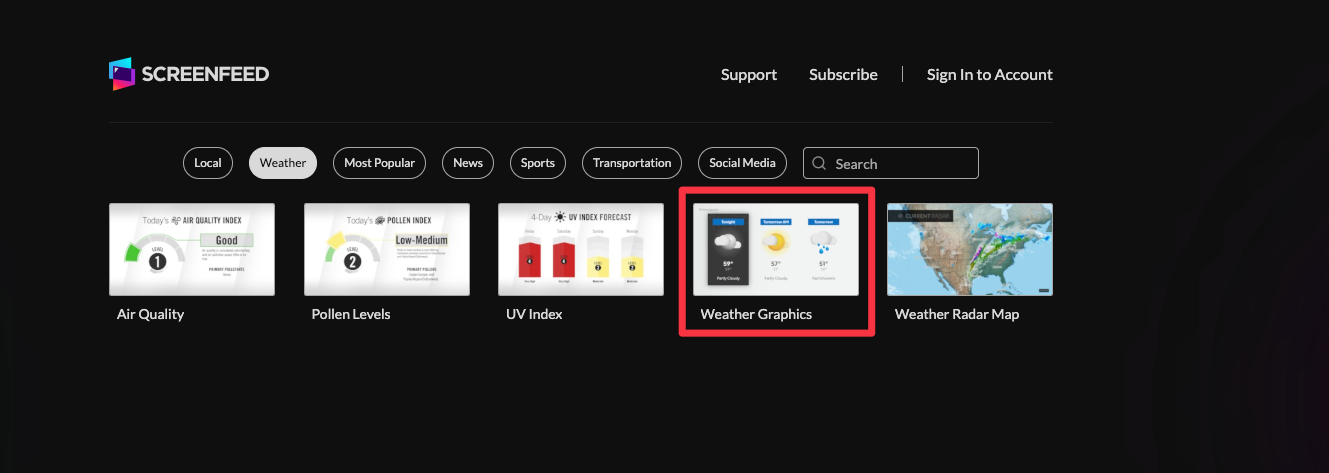
  1. Begin configuring your feed from the content menu by selecting the Weather Graphics tile.
Content Menu with Weather category chosen Weather Graphics Tile Highlighted
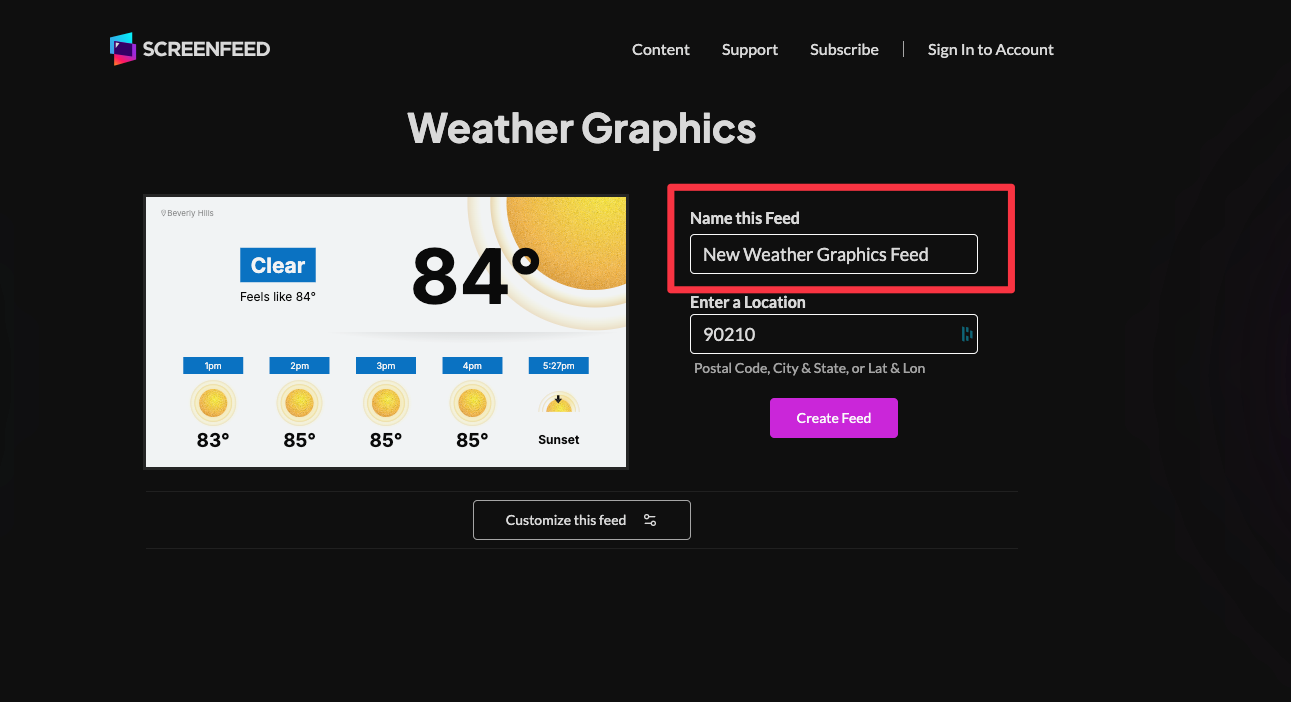
  1. Set a custom name in the “Name this Feed” field on the right.
Weather Graphics Feed Configuration window with Name this feed field highlighted
  1. Enter a location ( Postal code | City, State, | City,Country | Latitude,Longitude)
Location text field
  1. Click "Customize this Feed" if you wish to further customize the feed, or click create feed to generate a feed url with preset options selected.

Additional Customizations

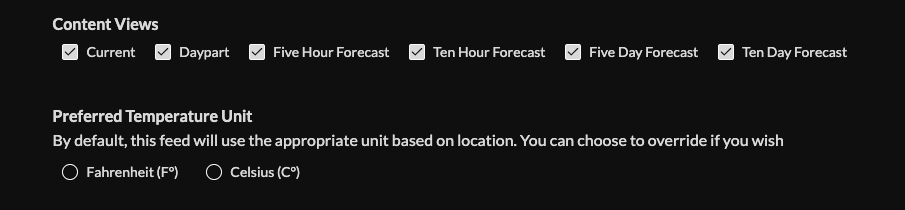
  1. Deselect unwanted content views (Current, Daypart, Five Hour, Ten Hour, Five Day, Ten Day) and set preferred temperature unit.
List of content views and temperature selector
  1. Set language, duration (default 10s), randomize order, and enable/disable animation.
Language drop down, Duration field Randomization and Animation toggle buttons

Available Languages are English, Spanish,French, Portuguese, German, Dutch, Chinese(Traditional) Chinese(Simplified) Finnish, Slovak, Russian, Czech, Croatian, Japanese, Italian, Danish, Norwegian Bokmål, Swedish

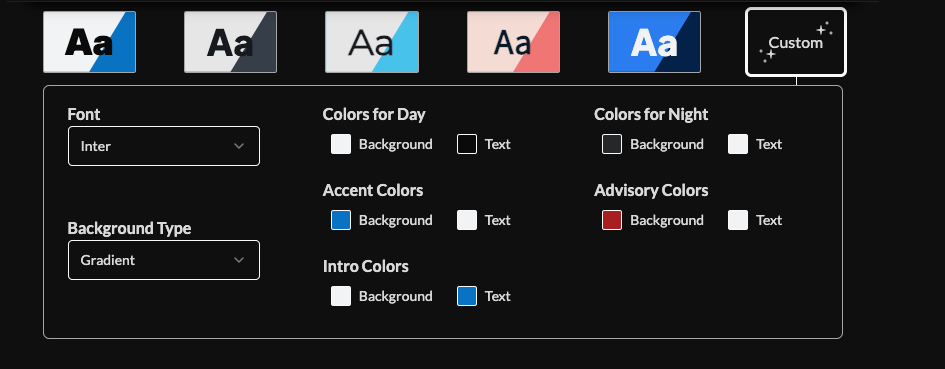
  1. Choose a preset style button or click on the custom style button to adjust fonts, colors (day/night/accent/intro/advisory), and background type.
Preset style button interface with Custom Style selected, Showing available customizable fields
  1. Choose intro settings.  Learn more about the intro options from this link. www.screenfeed.com/support-articles/intro-options
Intro style dropdown, background and message field
  1. Pick your delivery method (HTML media, RSS, direct URL). Need help picking a delivery Method Learn more about advantages to each delivery method here www.screenfeed.com/support-articles/delivery-methods-available
Delivery methods available for Weather graphics
  1. Click "Create Feed". and click the Copy Feed Button.

Frequently Asked Questions
Can I get the current weather in my location?
Yes all content views for weather graphics are available for locations around the world
Will weather graphics show inclement weather?
Weather Graphics will show weather advisories and conditions, but is not meant to be relied upon as a weather alert method.
Does Weather Graphics come in different screen sizes?
With HTML delivery Weather graphics will automatically adjust to your screen size, Media RSS and Direct URL methods can be viewed in Landscape, Portrait, Sidebar, Footer, 4:3 and 1:1 sizes.
Related Articles:

Find Answers in our Knowledge base

Contact us for help

Support available between 9:00am and 5:00pm (CST-06:00), Monday through Friday

America

5115 Excelsior Blvd #129, Minneapolis, MN 55416, USA
info@screenfeed.com
+1 800 461 3002