Support
Scheduling in Software
Geolocation

Geolocation

How screenfeed automatic location detection works.

Table of Contents

Keywords:
Try it out

About Geolocation

  • Screenfeed uses a geolocation API over https to try to determine your/ your devices location.
  •  This API will request via a web/engine, web browser or playback software to access device information.
  •  Since geolocation data may reveal information that you do not want to share. You must grant explicit permission via a prompt

Here is further information on the Geolocation API.
https://developer.mozilla.org/en-US/docs/Web/API/Geolocation_API
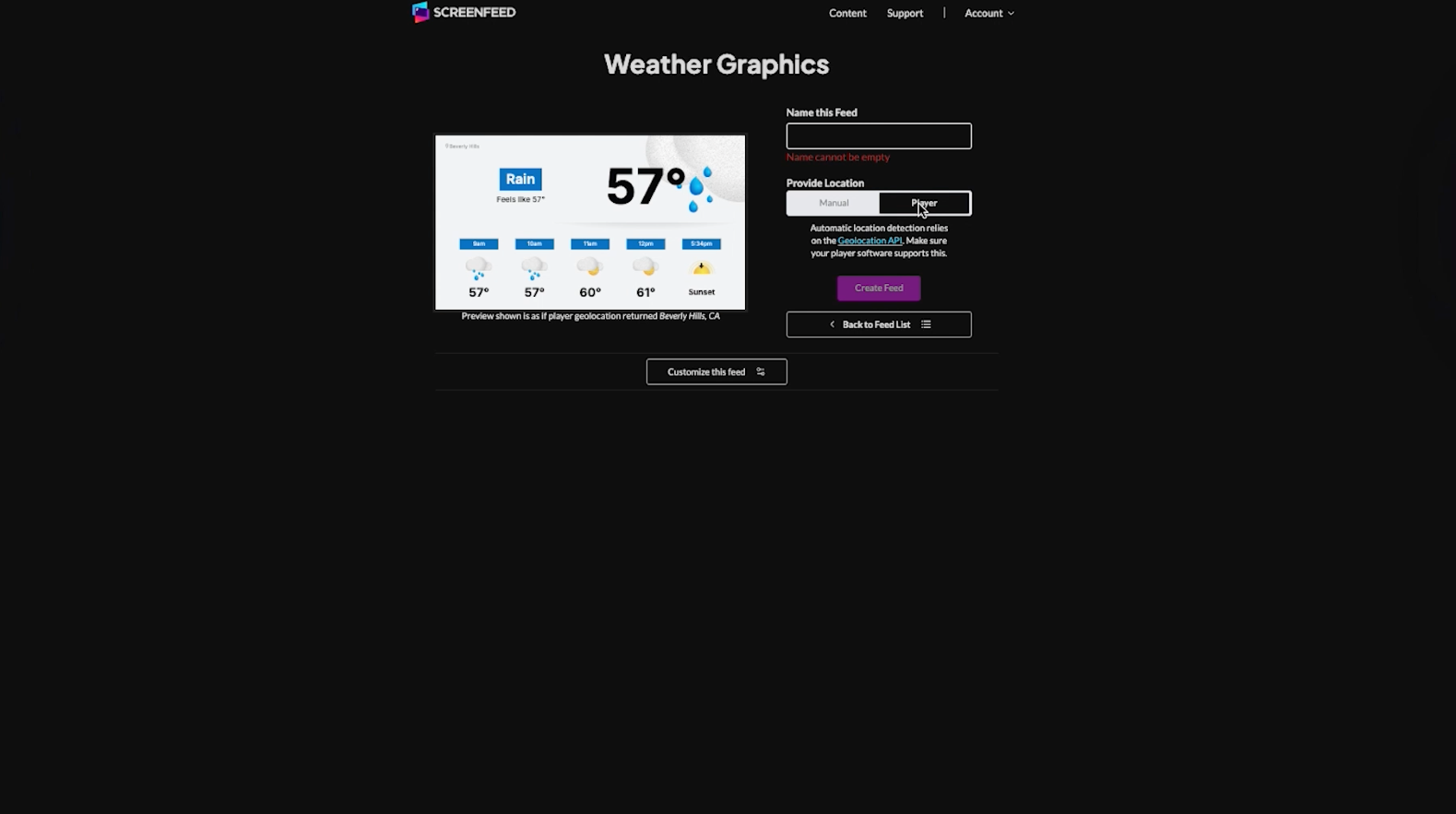
How to apply Geolocation to feeds

  1. Begin configuring a feed from the content menu that includes a location option.e.g. (Community Events)
  2. Click to toggle from Enter Location to Use player location.
  3.   When use player location is selected automatic detection is enabled, you may see a pop-up in your bowser to approve location services.
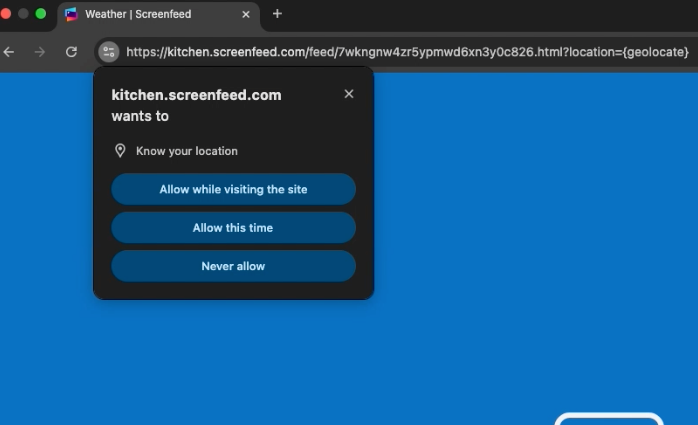
  4.  If you approve on your device. The preview window on the left will show the player location information
  5.  Continue with customization of the feed or Create feed to create/save the feed with geolocation applied. 

Frequently Asked Questions
Do I have to use geolocation?
No you can enter in a location rather than leverage geolocation using the feed configuration tool.
Can I use geolocation as an appended paramter?
Yes you can add ?location={{geolocate}} to the end of your feed.
Where can I read more on the geolocation api used?
https://developer.mozilla.org/en-US/docs/Web/API/Geolocation_API
Related Articles:

Find Answers in our Knowledge base

Contact us for help

Support available between 9:00am and 5:00pm (CST-06:00), Monday through Friday

America

5115 Excelsior Blvd #129, Minneapolis, MN 55416, USA
info@screenfeed.com
+1 800 461 3002