Support
Using Ready-Made Feeds
Configuration

Community Events

How to configure a Community Events feed to add local events to your digital sign
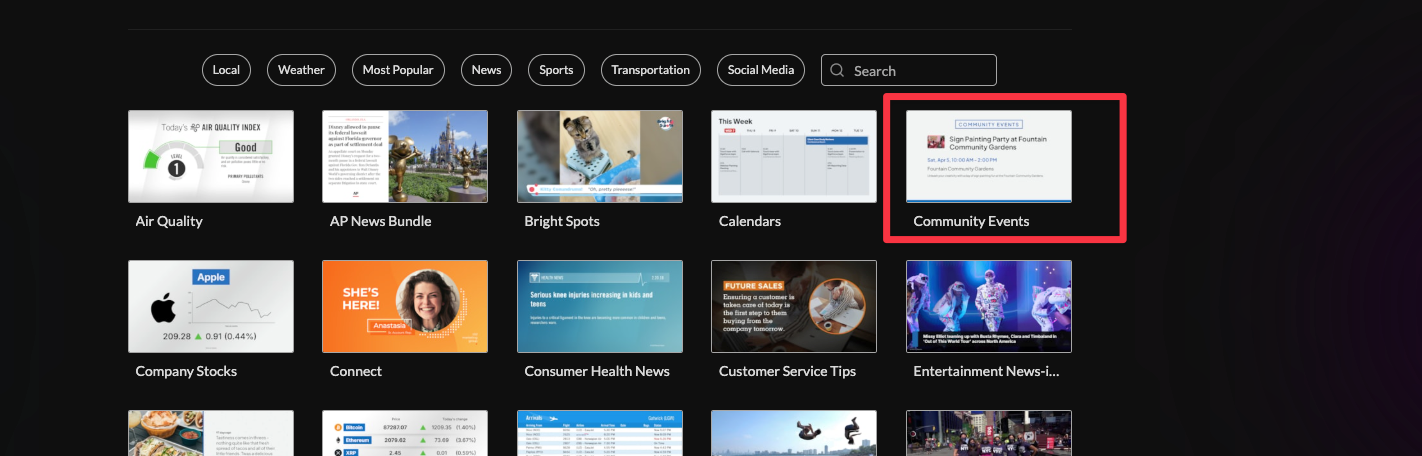
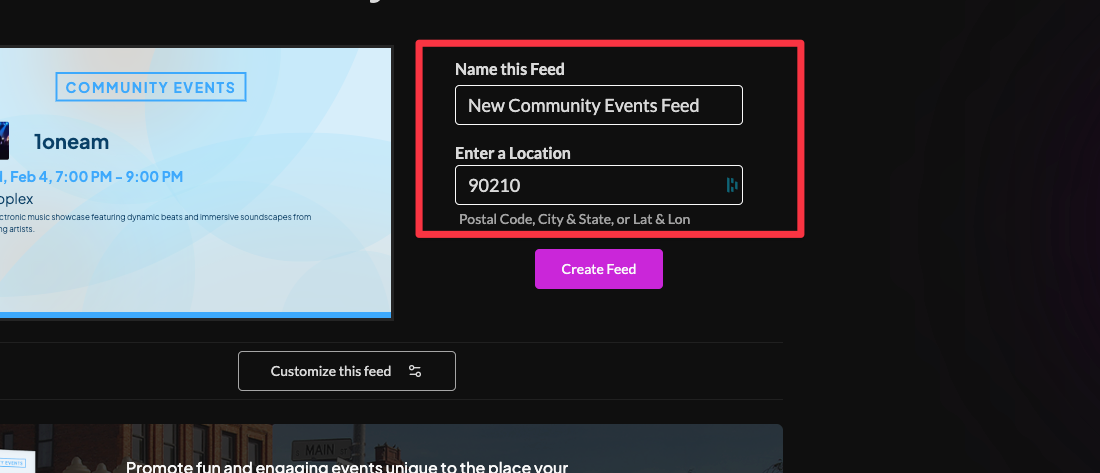
Table of Contents

Promote the fun, interesting and engaging events unique to the place your viewers call home. Community Events will capture your audience's attention and establish your venue as part of the community. Community Events leverages AI to improve event descriptions, fix incorrect information as well as moderation of events for appropriateness.
Keywords:
Local, Events, Community, Auto-Moderated
Try it out

Community Events Feed

  1. Begin configuring your feed from the content menu by selecting the Community Events tile.
  1. Set a custom name and a location (postal code, city/state, city/country, or lat/long).

3. Click "Customize this feed" and choose your content view (Main Street or Town Square). Theme will adjust based on your selection in the feed preview in the top left of the window.

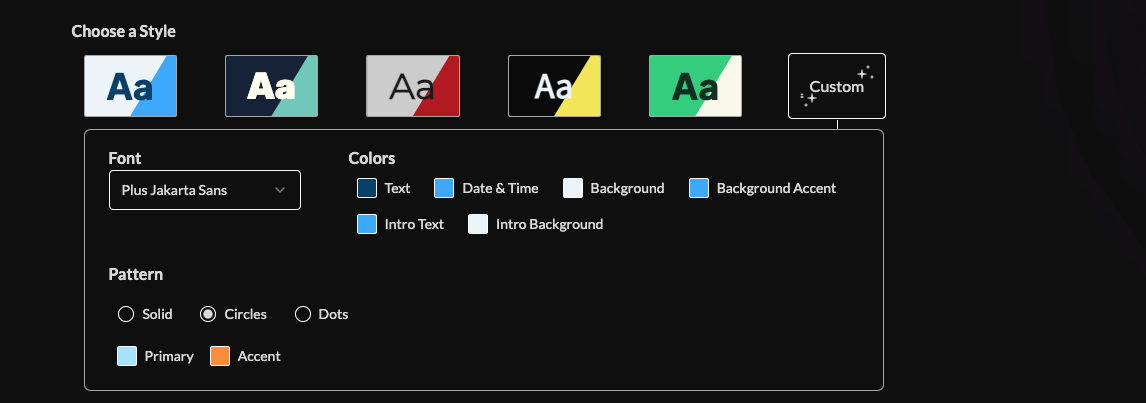
4. Choose a style (Preset or Custom) to adjust fonts, colors, patterns, and background.
5. Turn animation on or off, and choose an intro style, background, and custom message.Learn more about the intro options from this link. www.screenfeed.com/support-articles/intro-options

6. Set your delivery method (HTML media, RSS, direct URL, Json, or XML).Need help picking a delivery Method Learn more about advantages to each delivery method here www.screenfeed.com/support-articles/delivery-methods-available

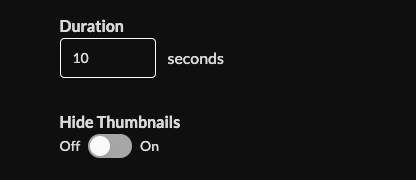
7. Set the duration (default 10s per event) and toggle hiding thumbnails.
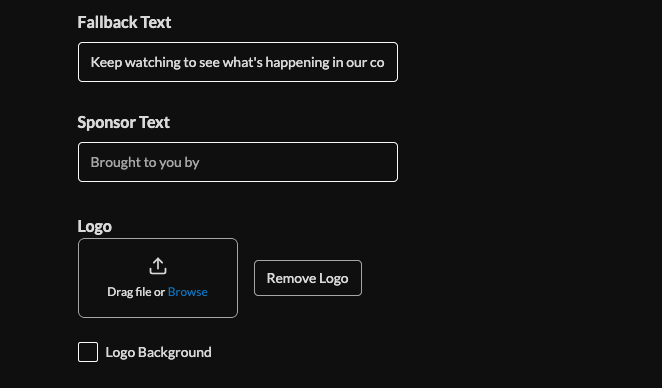
8. Optionally set custom fallback text (Text to appear if no events are available within your parameters), sponsored text, and upload a logo.
9. Click the "Create Feed" button.

Frequently Asked Questions
How far in the future are event dates?
Events with dates up to 90days in the future are pulled, this can vary by locale depending on the amount of events available
What order are events shown?
By default events are shown randomly
Can I submit my own events?
Currently we don't allow user submitted events as the default, contact support@screenfeed.com for more information about custom event feed options
Related Articles:

Find Answers in our Knowledge base

Contact us for help

Support available between 9:00am and 5:00pm (CST-06:00), Monday through Friday

America

5115 Excelsior Blvd #129, Minneapolis, MN 55416, USA
info@screenfeed.com
+1 800 461 3002