Support
Using Ready-Made Feeds
Configuration

Company Stocks

How to configure a Company Stocks feed for your digital sign
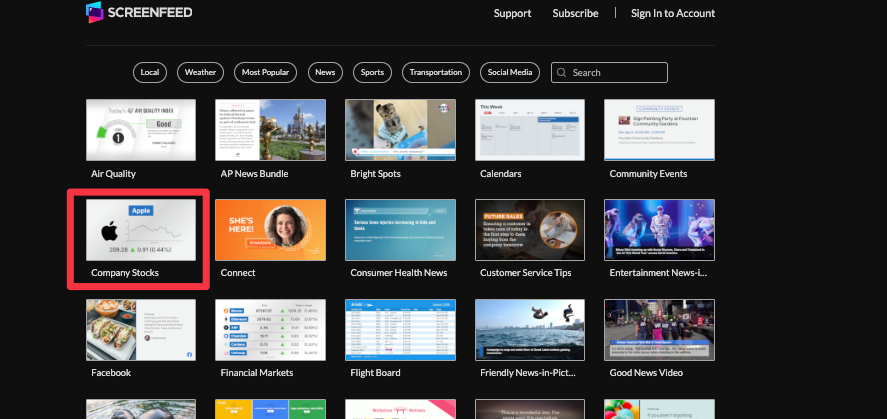
Table of Contents

Easily track individual stocks or general gainers and losers of interest with company stock data for digital signage content. Updates every minute with only a 15-minute delay.
Keywords:
Try it out

Company Stocks Feed Configuration

  1. Begin configuring your feed from the content menu by selecting the Company Stocks tile.

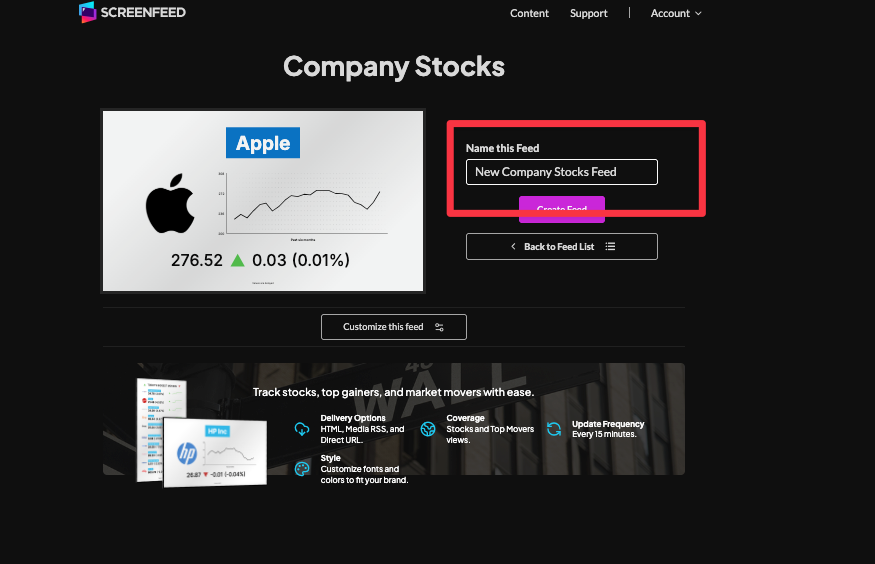
2. Set a custom name.

3. Click "Customize this Feed" if you wish to further customize the feed, or click “Create Feed” to generate a feed url with preset options selected.
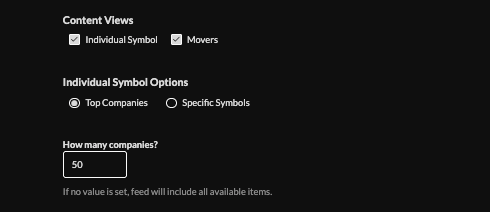
  1. Select content views to include, if "individual symbol" is selected, include top companies (default 50) or specify symbols by entering a business name/symbol.

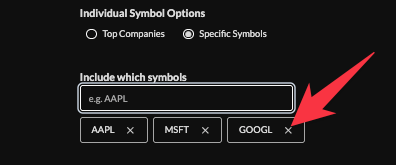
Remove symbols by clicking the X next to the symbol name or exclude symbols from graphics.
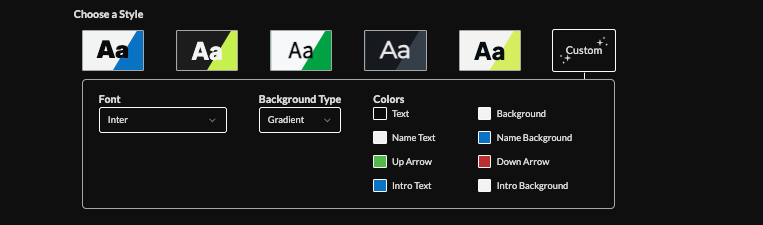
5. Choose a style (Preset or Custom) to adjust fonts, background type, and colors.
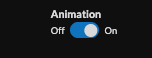
6. Enable/disable animation.
7. Choose intro settings. Learn more about the intro options from this link. www.screenfeed.com/support-articles/intro-options

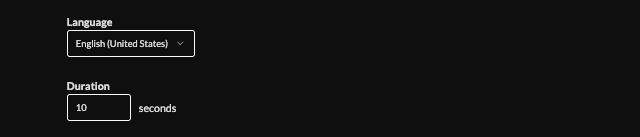
8. Set the language, and set the duration (default 10s).
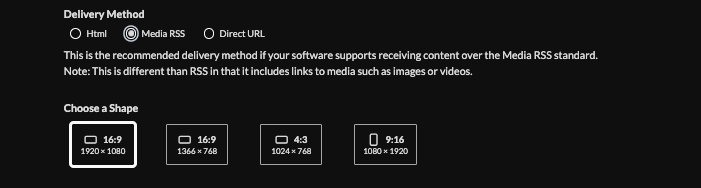
9. Choose a delivery method (HTML, media, direct URL) and click "Create Feed". Need help picking a delivery Method Learn more about advantages to each delivery method here www.screenfeed.com/support-articles/delivery-methods-available
Frequently Asked Questions
Can I use company stocks in a zone on my player?
Yes, HTML delivery will automatically adjust size and design. MRSS and DirectURL delivery comes in preset sizes for 16:9, 4:3, 9:16, Sidebar and Footer
How often does the data update?
Company Stocks update every 15 minutes
Related Articles:

Find Answers in our Knowledge base

Contact us for help

Support available between 9:00am and 5:00pm (CST-06:00), Monday through Friday

America

5115 Excelsior Blvd #129, Minneapolis, MN 55416, USA
info@screenfeed.com
+1 800 461 3002