How to configure a Traffic Routes feed for your digital sign
1. Begin configuring your traffic routes feed from the content menu by selecting the Traffic Routes tile.
2. Set a custom name, Enter a Manual Location (postal code| city,state| lon, lat) or select player to enable geolocation (learn more about geolocation)
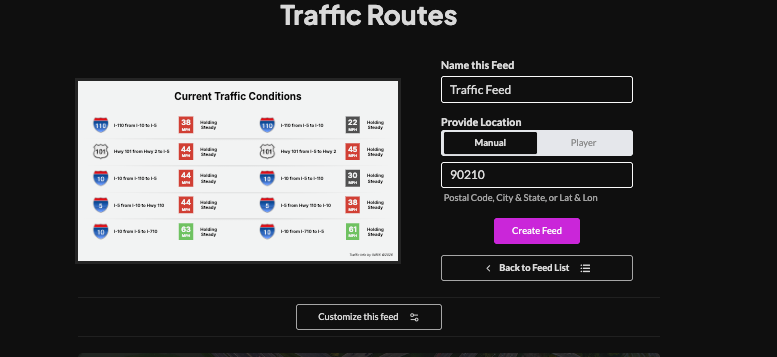
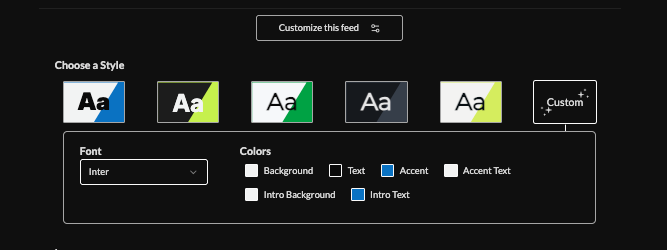
3. Click Customize this feed. Then choose a style (Preset or Custom).
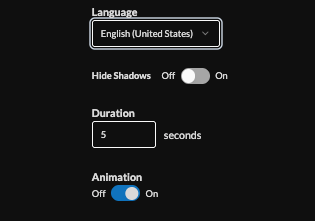
4. Choose language, toggle shadows, set duration (default 5s), and enable/disable animation.
5. Set an intro style, background, and message. Learn more about the intro options from this link. www.screenfeed.com/support-articles/intro-options

6. Set delivery method (HTML, Media RSS, Direct URL)Learn more about advantages to each delivery method here www.screenfeed.com/support-articles/delivery-methods-available

7. Click "Create Feed".
Support available between 9:00am and 5:00pm (CST-06:00), Monday through Friday


