How to configure a Traffic Maps feed for your digital sign
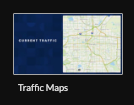
Begin configuring your feed from the content menu by selecting the Traffic Maps tile.
Set a custom name, Enter a Manual Location (postal code| city,state| lon, lat) or select player to enable geolocation (learn more about geolocation)

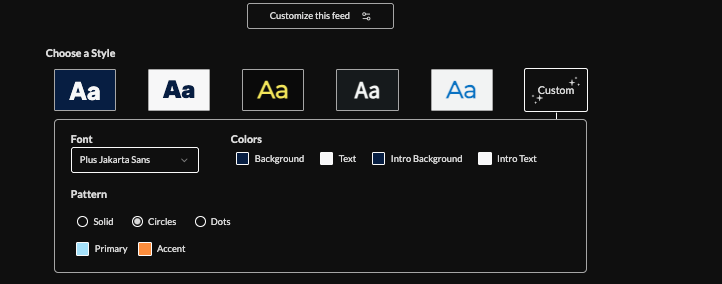
Click "Customize this Feed". Then choose a style (Preset or Custom) to adjust fonts, colors, and background patterns.
Set animation level (full, minimal, off),

Set an intro style, background, and message. Learn more about the intro options from this link. www.screenfeed.com/support-articles/intro-options

Set map zoom level.

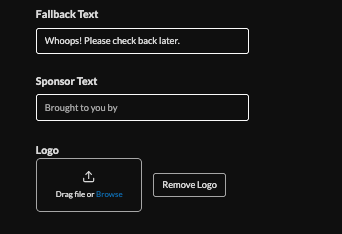
Set sponsor text, logo, language, and fallback text (a message to show when there is no map returned for the chosen location).
Set delivery method (HTML media, RSS, direct URL)Learn more about advantages to each delivery method here www.screenfeed.com/support-articles/delivery-methods-available

Click "Create Feed".
Support available between 9:00am and 5:00pm (CST-06:00), Monday through Friday


