How to configure a The List Feed for your digital sign
1. Begin configuring your feed from the content menu by selecting the list tile.
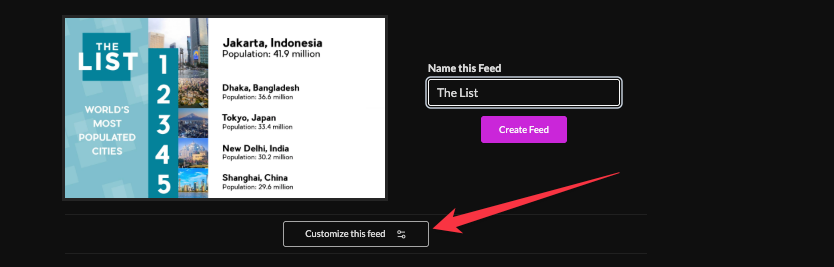
2. Set a custom name and click "Customize This Feed"
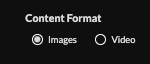
3. Select content format (images or video).
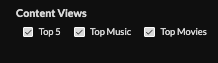
4. Select content views to include.
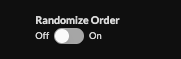
5. Optionally, Randomize order.
6. Set delivery method (Image: HTML/Media/URL; Video: Media/URL) and click "Create Feed".
Learn more about advantages to each delivery method here www.screenfeed.com/support-articles/delivery-methods-available

7. Click “Create Feed”
Support available between 9:00am and 5:00pm (CST-06:00), Monday through Friday


