How to configure a The Canadian Press Feed for your digital sign
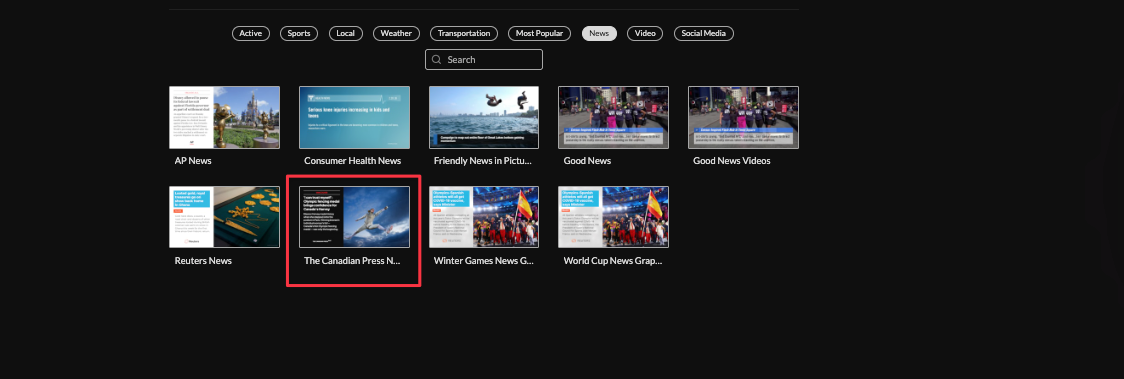
1. Begin configuring your Reuters news feed from the content menu by selecting The Canadian Press News Tile.
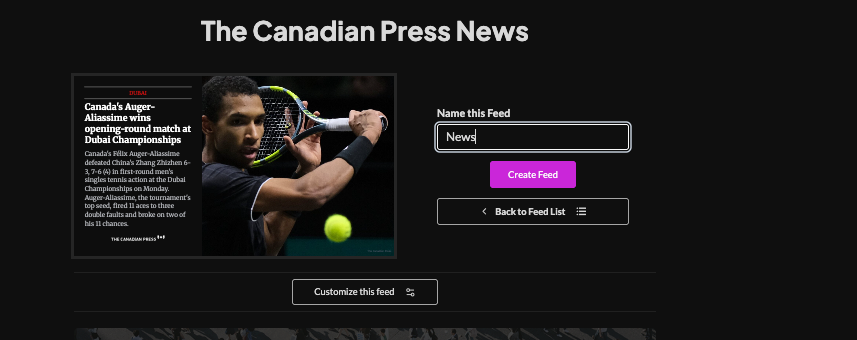
2. Toggle content views, set a custom name, and click "Customize This Feed".
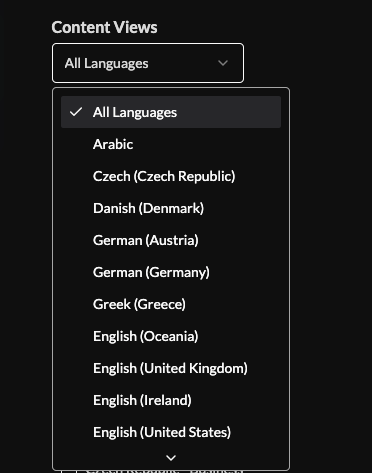
3. Select content view or sort by language.
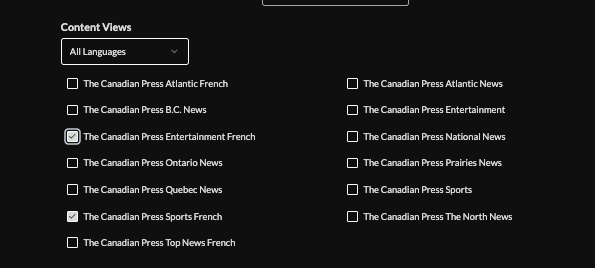
4. Check boxes to include content.
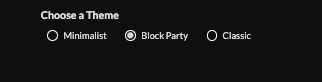
5. Choose a theme
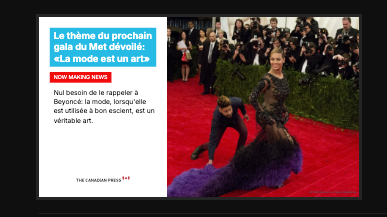
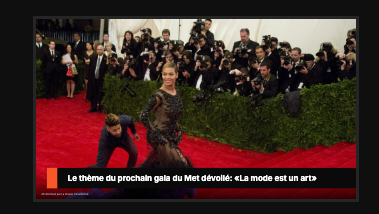

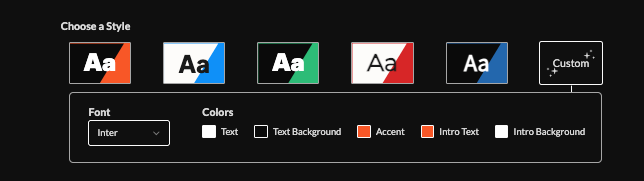
6. Pick from a preset style or Customize the font and colors by choosing the custom style button.
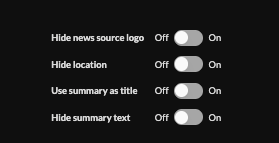
7. Optionally hide logos/locations, use summary as title, and enable/disable animations.
8. Set an intro style, background, and message. Learn more about the intro options from this link. www.screenfeed.com/support-articles/intro-options

9. Optionally, Include your own logo.

10. Set story duration (default 10s), and toggle randomization.

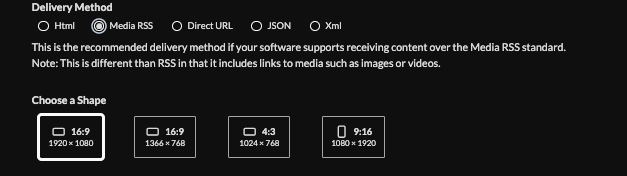
11. Set delivery method (HTML media, RSS, direct URL, Json data)Learn more about advantages to each delivery method here www.screenfeed.com/support-articles/delivery-methods-available
12. Click "Create Feed".

Support available between 9:00am and 5:00pm (CST-06:00), Monday through Friday


