Create and moderate feeds with posts from your Teams channels for digital signage
Teams for digital signage can pull posts from multiple Teams channels. Only Posts to teams channels will show in your feed, attachments and replies will not appear. There is a limit of 20mb for video playback, larger videos in posts will not appear. Posts can be organized in your chosen layout and style, including video playback and a call to action.
A Teams account authorization/ administrator approval.
Plan your design based on our playback recommendations.
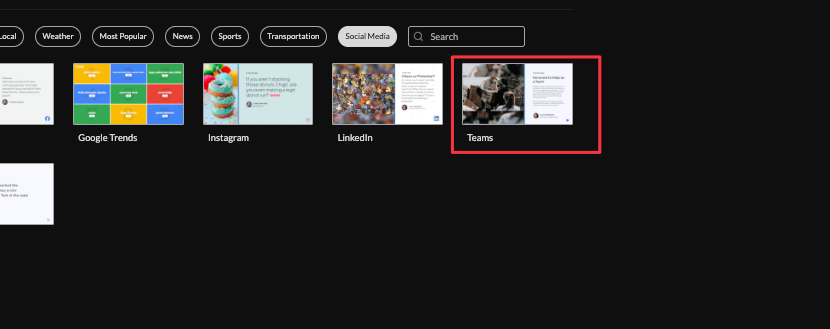
1. Begin configuring your Teams feed from the content menu by selecting the Teams tile.
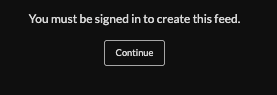
2. Sign in to a Screenfeed account to continue, Click continue to sign in or set up a new Screenfeed account.
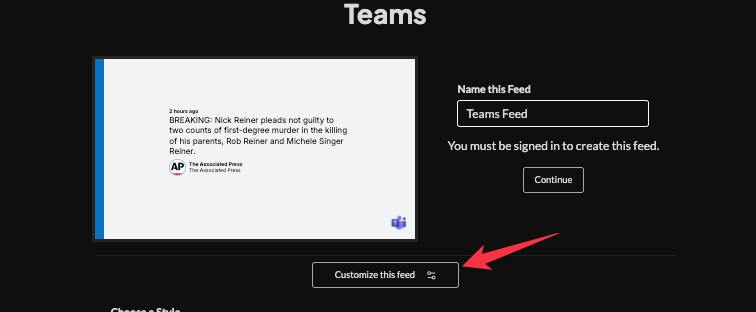
3. Set a custom name, and click "Customize Feed".
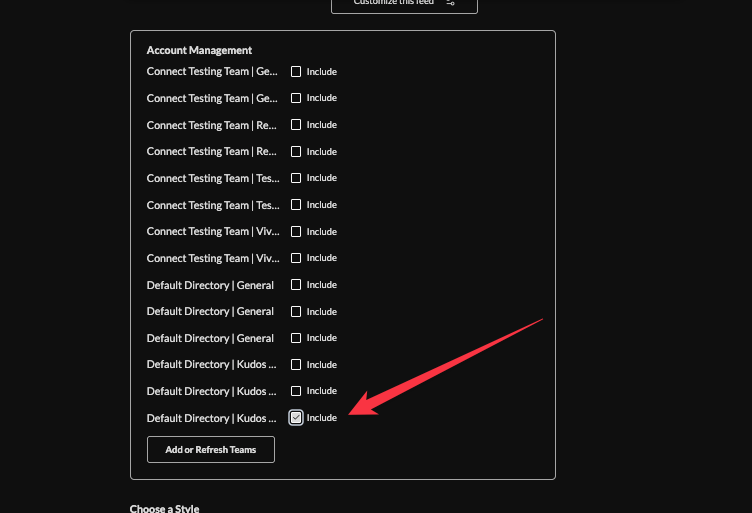
4. Click "Add or Refresh Teams"

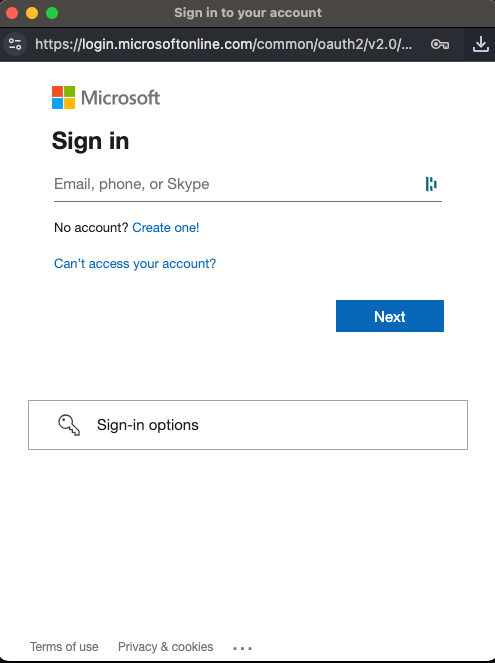
5. Enter your Teams credentials ( This uses Microsoft authorization including any 2 factor authentication enabled), and authorize the application. You must be a Microsoft account administrator to approve.
6. Check the box next to the channel you want to include. Channel names are listed as Team name| Channel name
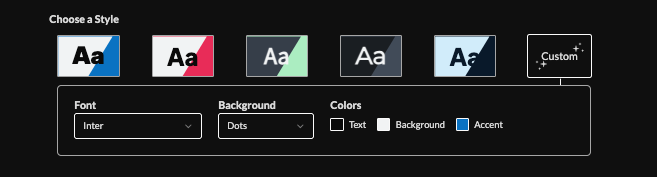
7. Choose a style (Preset or Custom) to adjust fonts, background patterns, and colors.
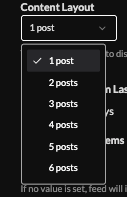
8. Select number of posts per content view
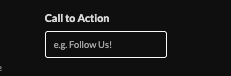
9. Set a call to action
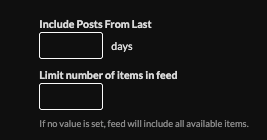
10. Scope the posts (limits on history/items),
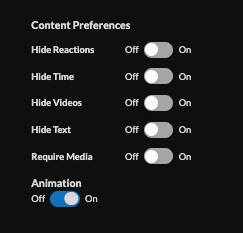
11. Set content preference, hide or show time, videos, text or require media, and enable/disable animations.
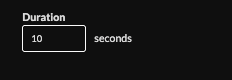
12. Set duration (default 10s per content view)
13. Set an intro style, background, and message. Learn more about the intro options from this link. www.screenfeed.com/support-articles/intro-options

14. Set a delivery method (HTML, Media RSS, Direct URL, Json, XML).
Learn more about advantages to each delivery method here www.screenfeed.com/support-articles/delivery-methods-available

1. Click "Create Feed".
Support available between 9:00am and 5:00pm (CST-06:00), Monday through Friday


