How to get started quickly with Screenfeed read-made feeds.
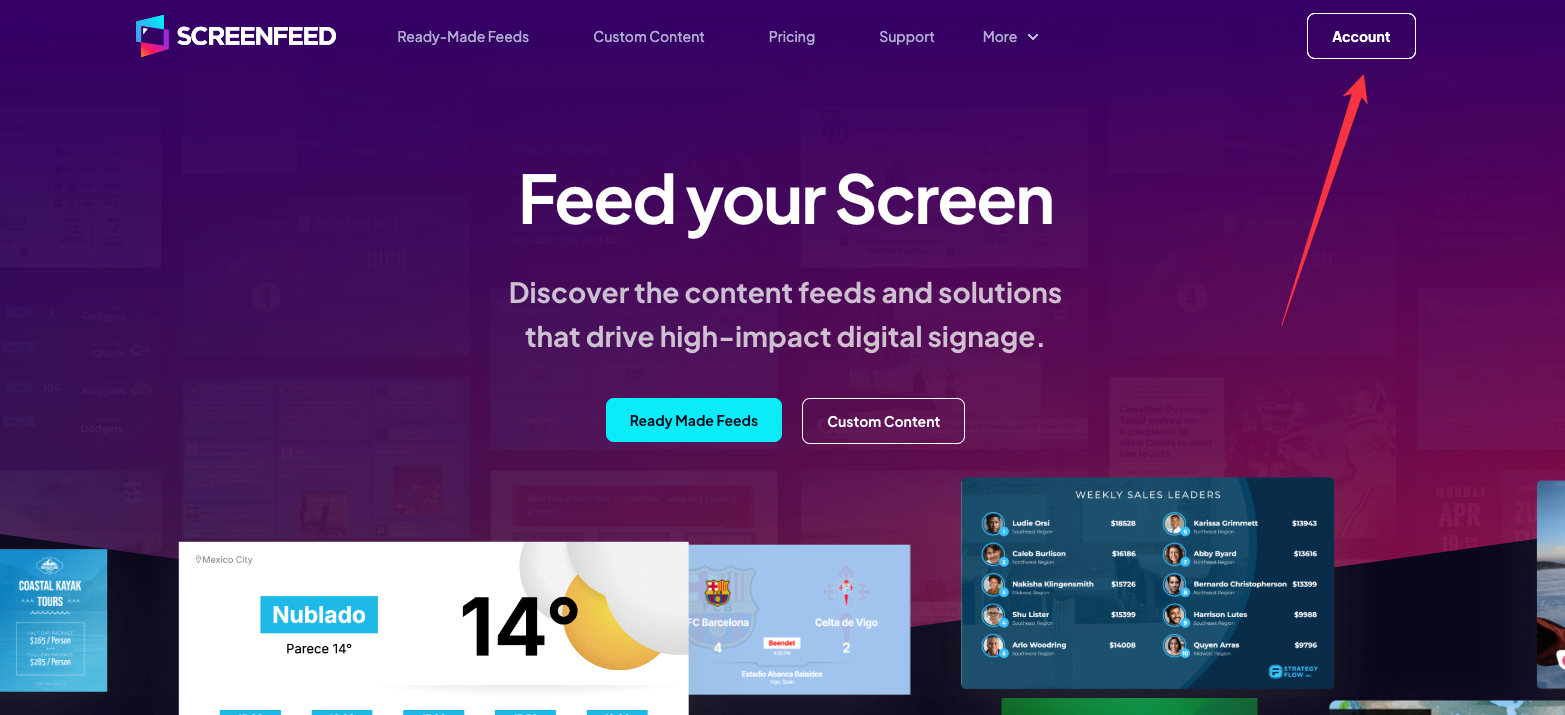
1. From Screenfeed.com click the Account button.
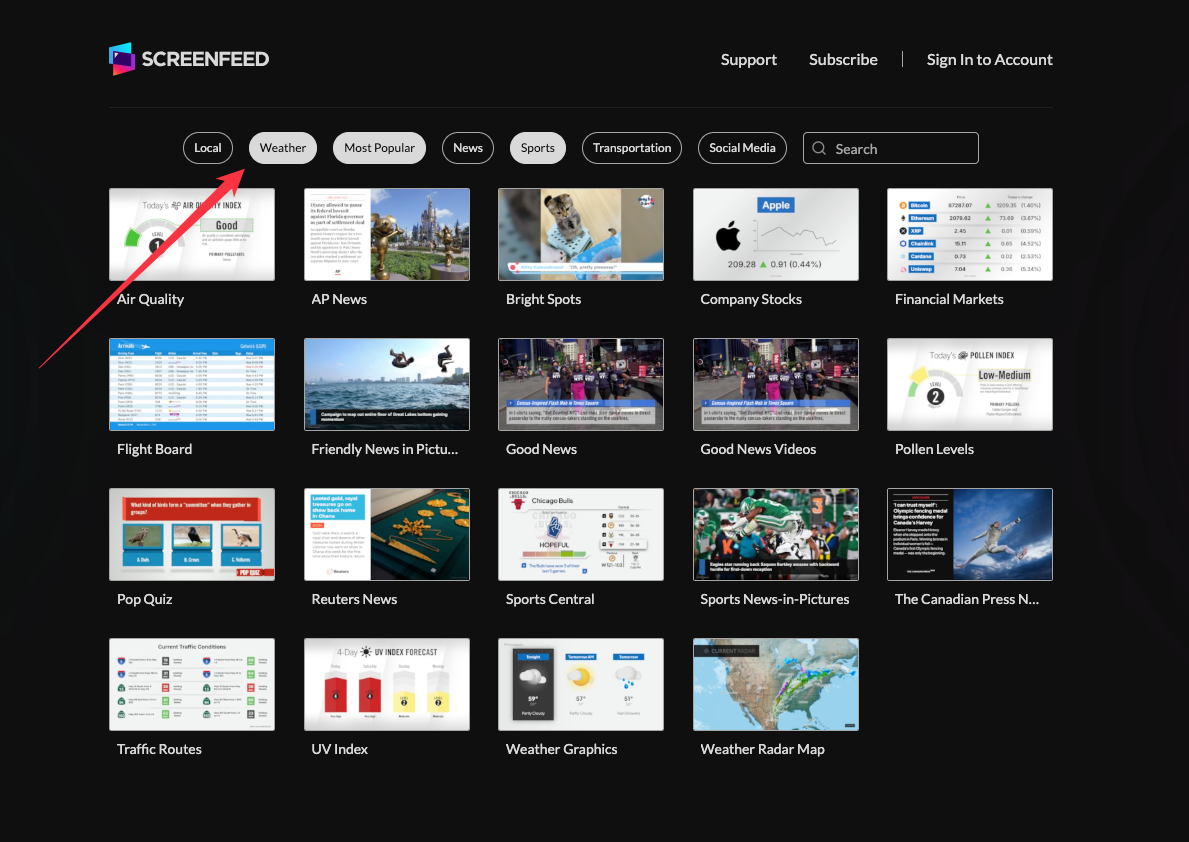
2. In a new window you will see a menu of the available content from screenfeed.
3. At the top of the menu click to sort between categories. When selected, category buttons will be highlighted and have an accumulative effect.
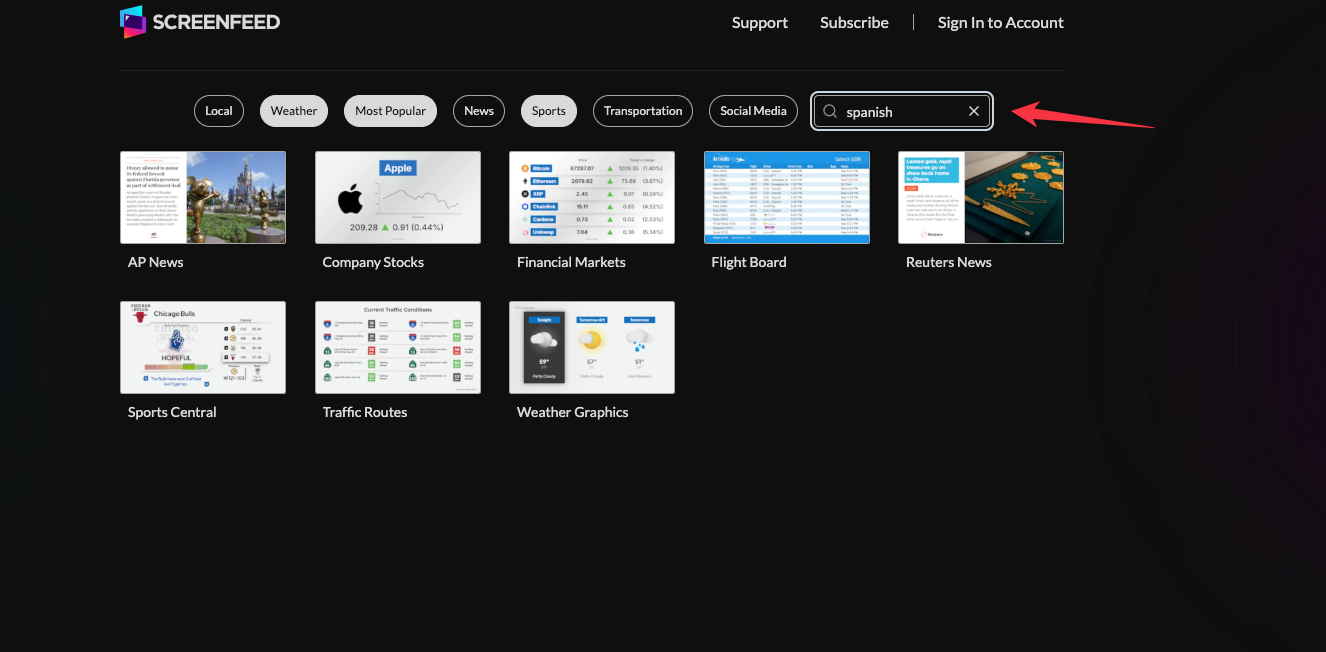
4. Alternatively search for content, with the search field by keyword such as topic languages, countries, or orientation
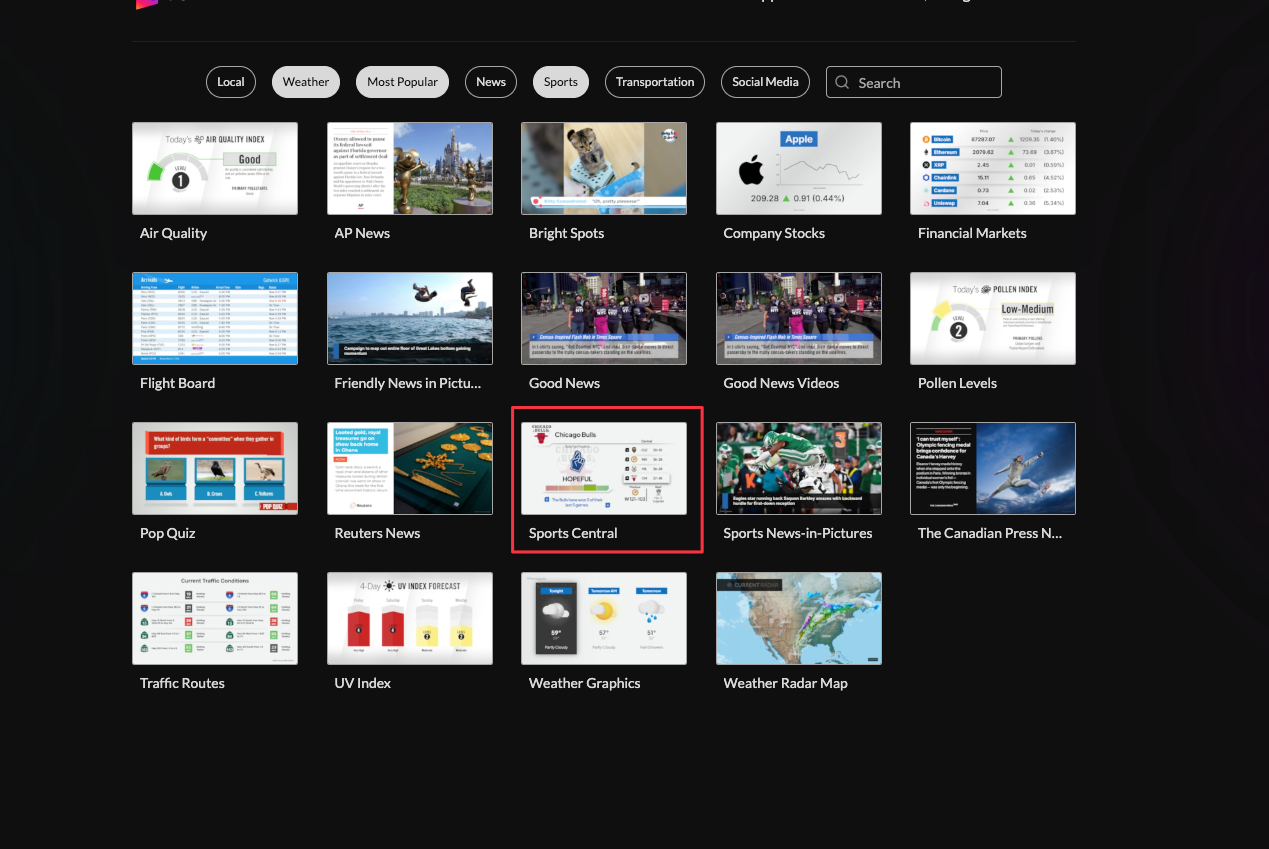
5. Click on the feed tile to launch into feed configuration.
6. From the feed configuration page you can customize the feed content, and look.
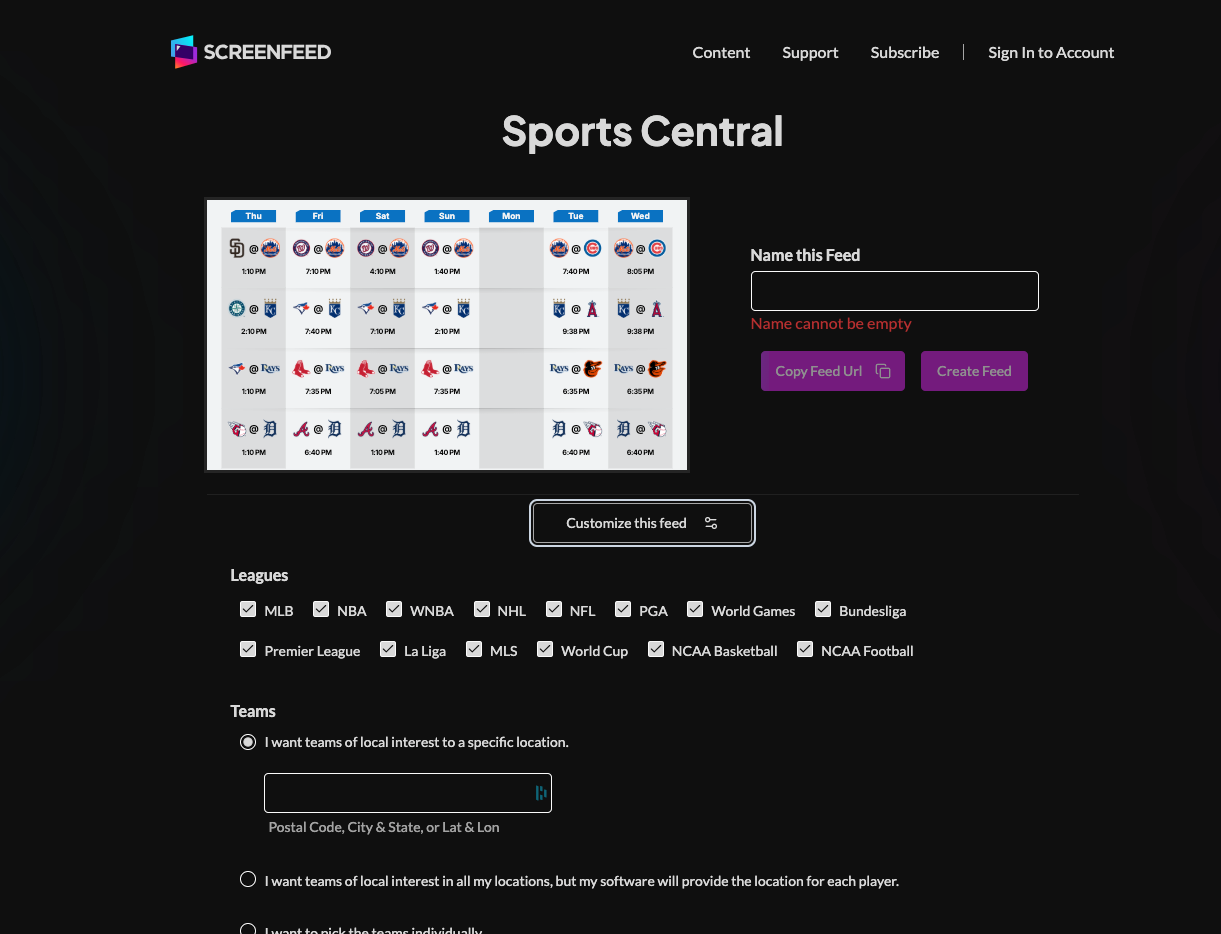
Each feed has unique options for you to configure the content to fit your need.
We have feed specific configuration articles and videos at screenfeed.com/support if you need help.
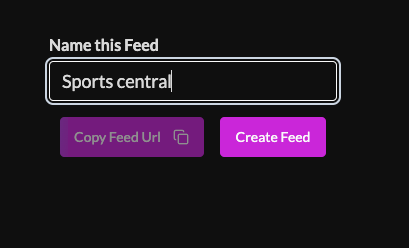
7. Name your feed and click Create!
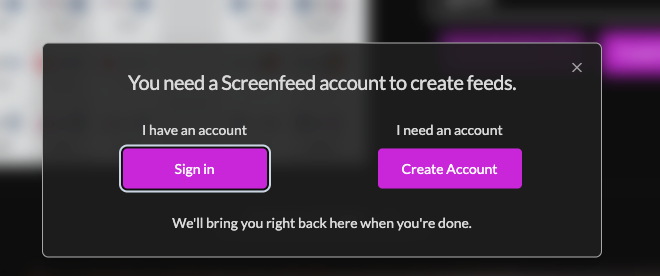
8. If you already have a screenfeed account sign in or If you don’t have an account create one.
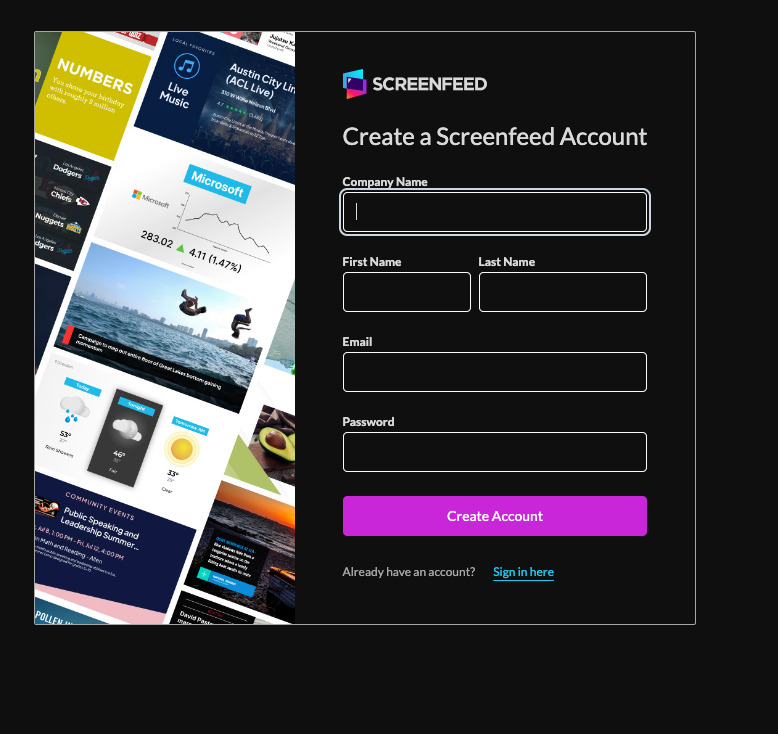
9. New accounts are associated with an email address. You will be sent an email to validate your account.
10. You will automatically be returned to your feed if you sign in to your account. If you are creating a new account click the Back to your feed button.

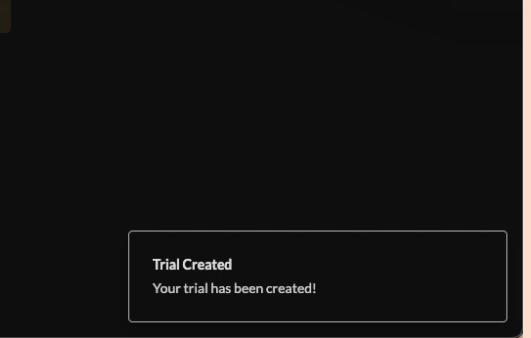
11. You will be be automatically subscribed a trial of the content feed.
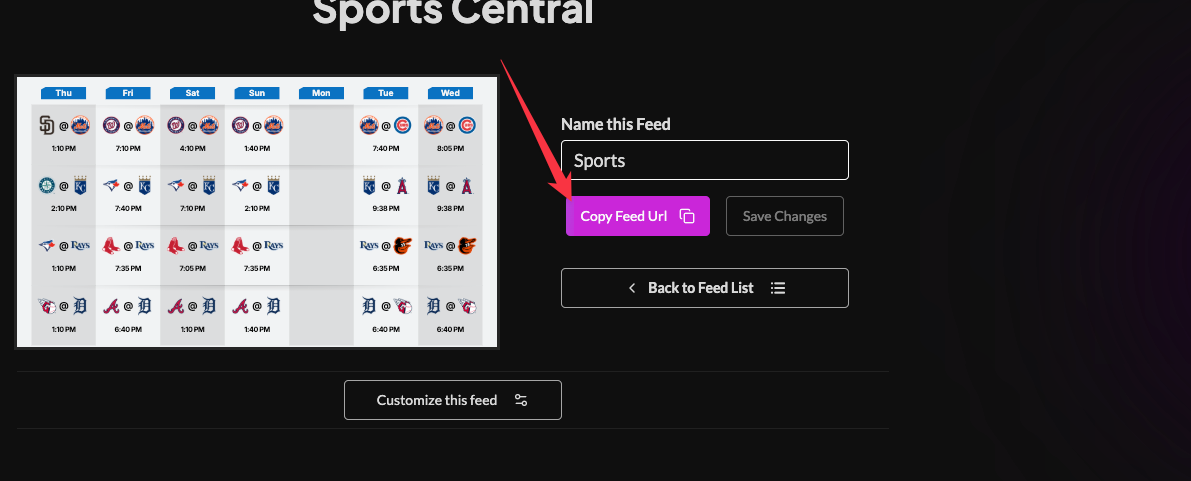
12. Copy the feed url for use in your digital signage or digital signage software.
Want to learn more about our content before creating a feed check out screenfeed.com/feeds
Support available between 9:00am and 5:00pm (CST-06:00), Monday through Friday


