How to configure a Microsoft Power BI feed for your digital sign
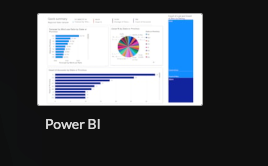
1. Begin configuring your power BI feed from the content menu by selecting the power BI tile.
2. You must be signed in to a Screenfeed account to create a Power BI feed. Click continue to sign in or create an account.
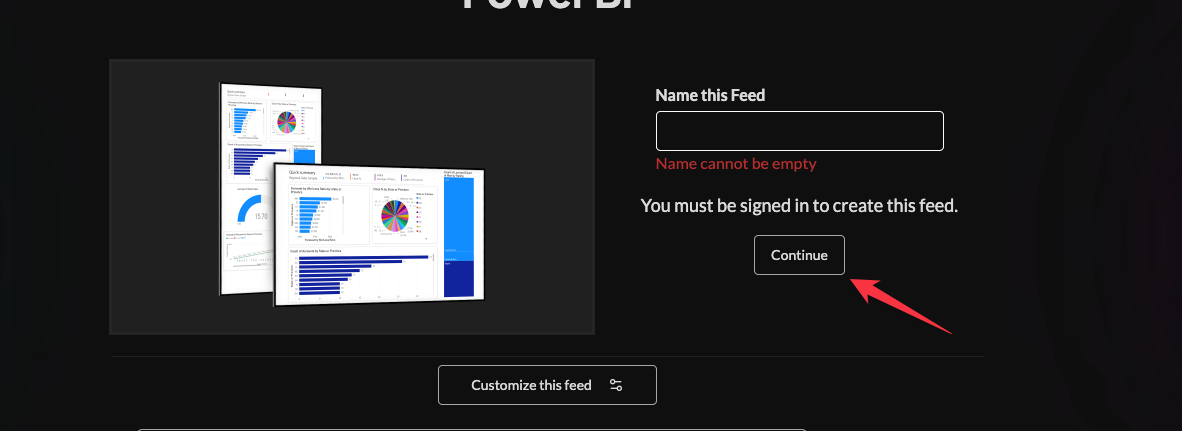
3. Set a custom name and click "Customize This Feed".

4. Click "sign in with" and to create a connection with your Microsoft Tenant

5. A pop up window will appear that leverages Microsoft authorization, this will follow 2 factor authentication rules. Enter Microsoft credentials to authorize read access for the authorized user.
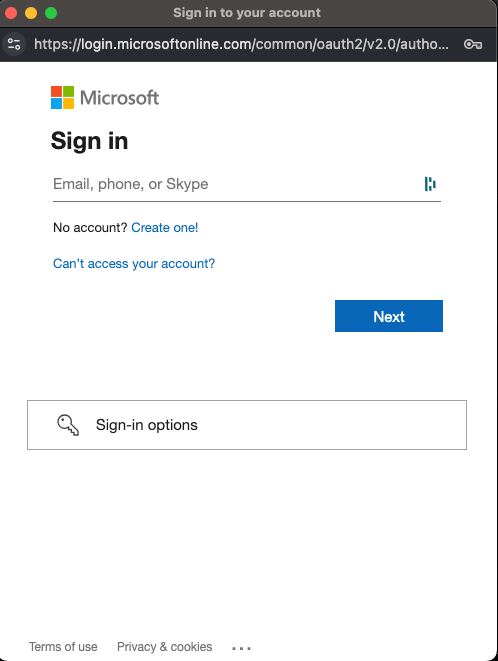
Note: This will install an enterprise application on your Microsoft tenant that may require admin authorization. The application can be further scoped by Microsoft Entra.
6. Click on a report name on the left column to add it as a feed item, it will appear under the feed items on the right.
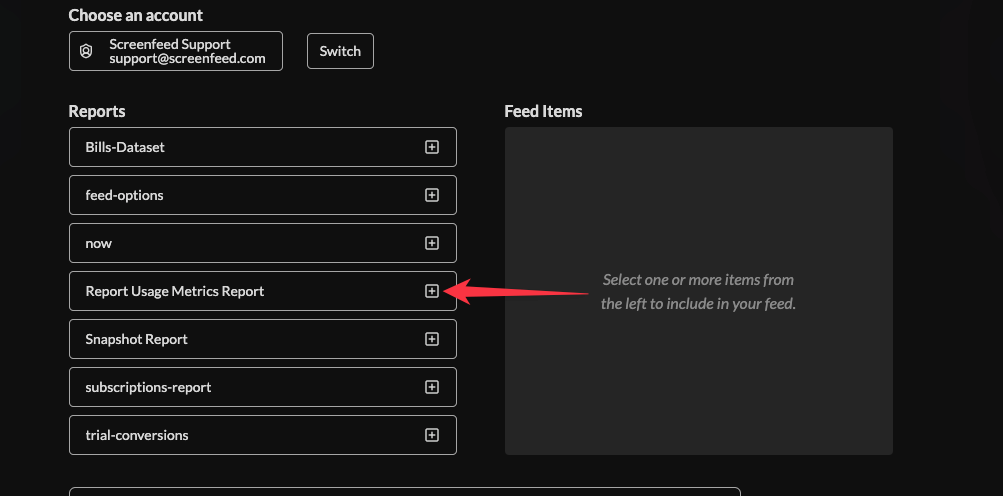
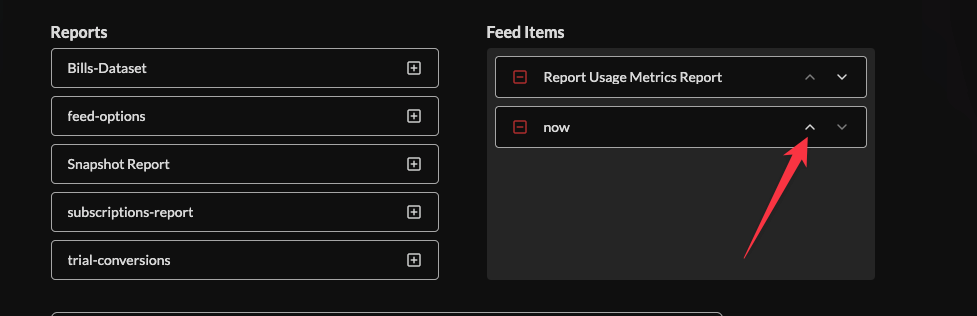
7. Adjust order using the arrows associated with each report
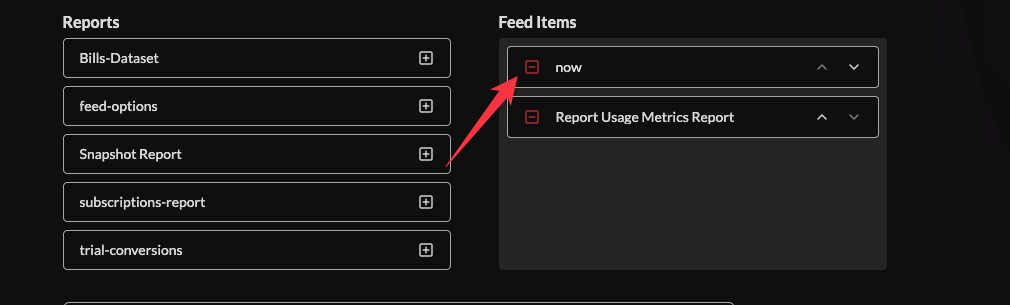
8. Click the “ - “ symbol to remove the report from feed items.
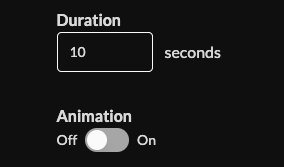
9. Set duration of each report, and enable/disable animations.
20. Set an intro style, background, and message. Learn more about the intro options from this link. www.screenfeed.com/support-articles/intro-options


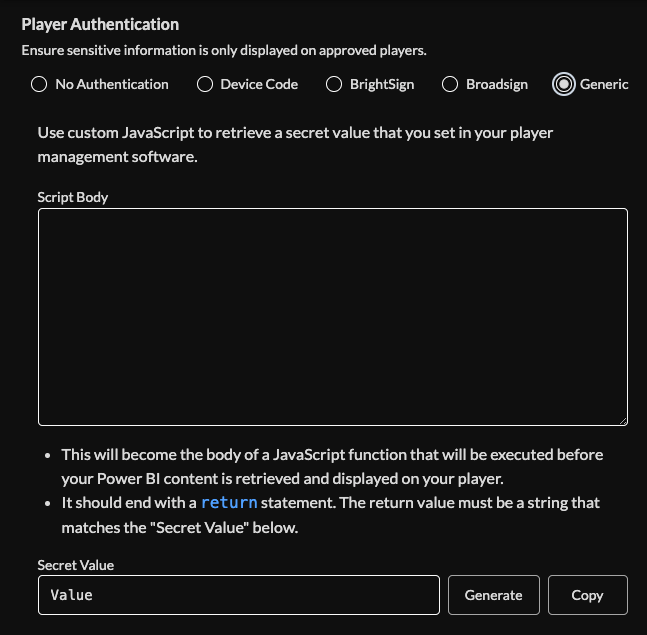
22. If HTML is the chosen delivery method, optionally enable player level authentication (Device code, BrightSign, BroadSign, or Generic).
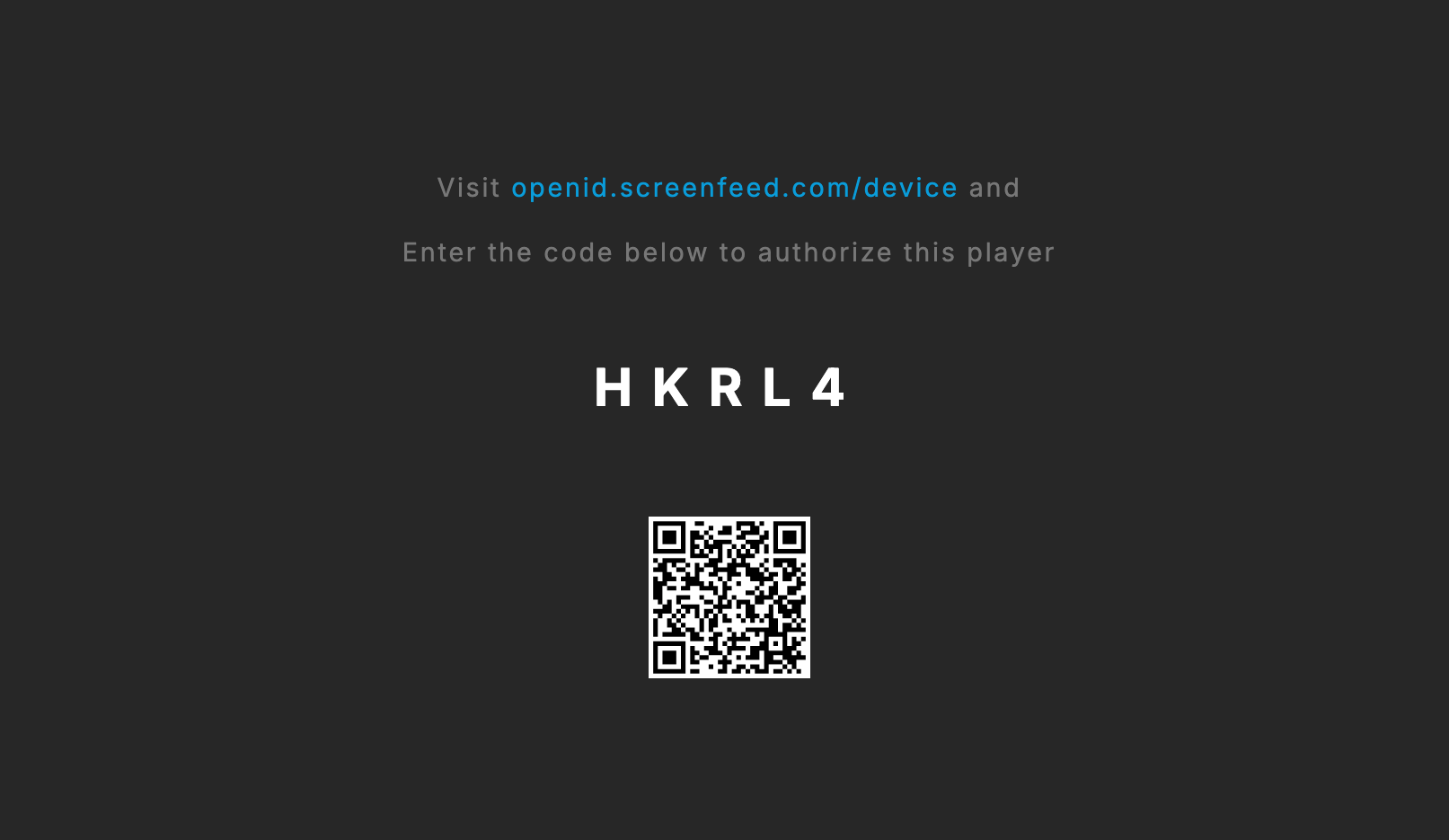
When Device Code is chosen the feed will show a code for you to authorize with your screenfeed account at openid.screenfeed.com/device.
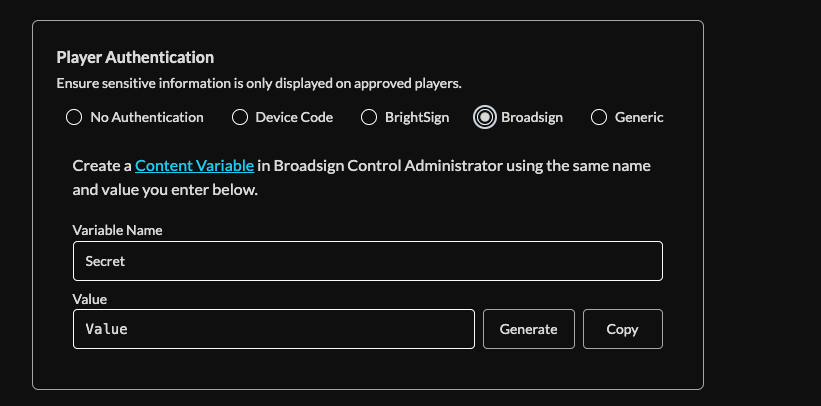
When Brightsign Authorization is selected you will have to enter in a variable name and value.
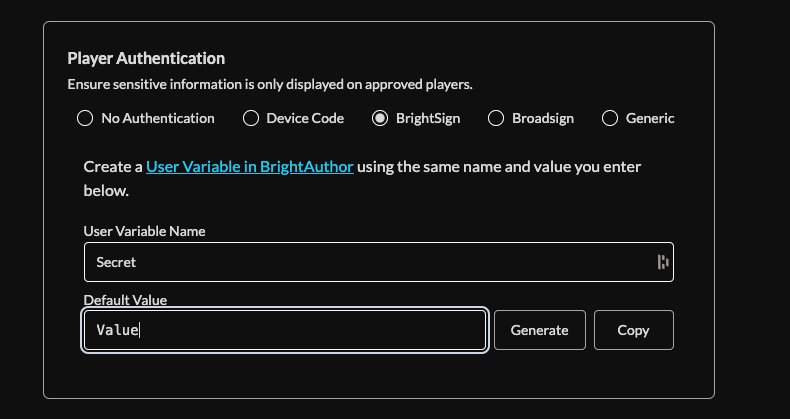
Download the brightsign script plugin below the create feed button.

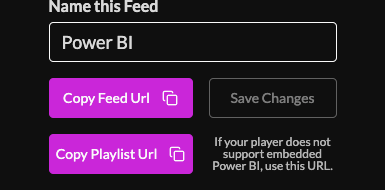
Click Create and copy the feed url. ( If you have a Brightsign Series 5 or higher) Copy the Playlist URL (If you have Brightsign Series 4 or lower)
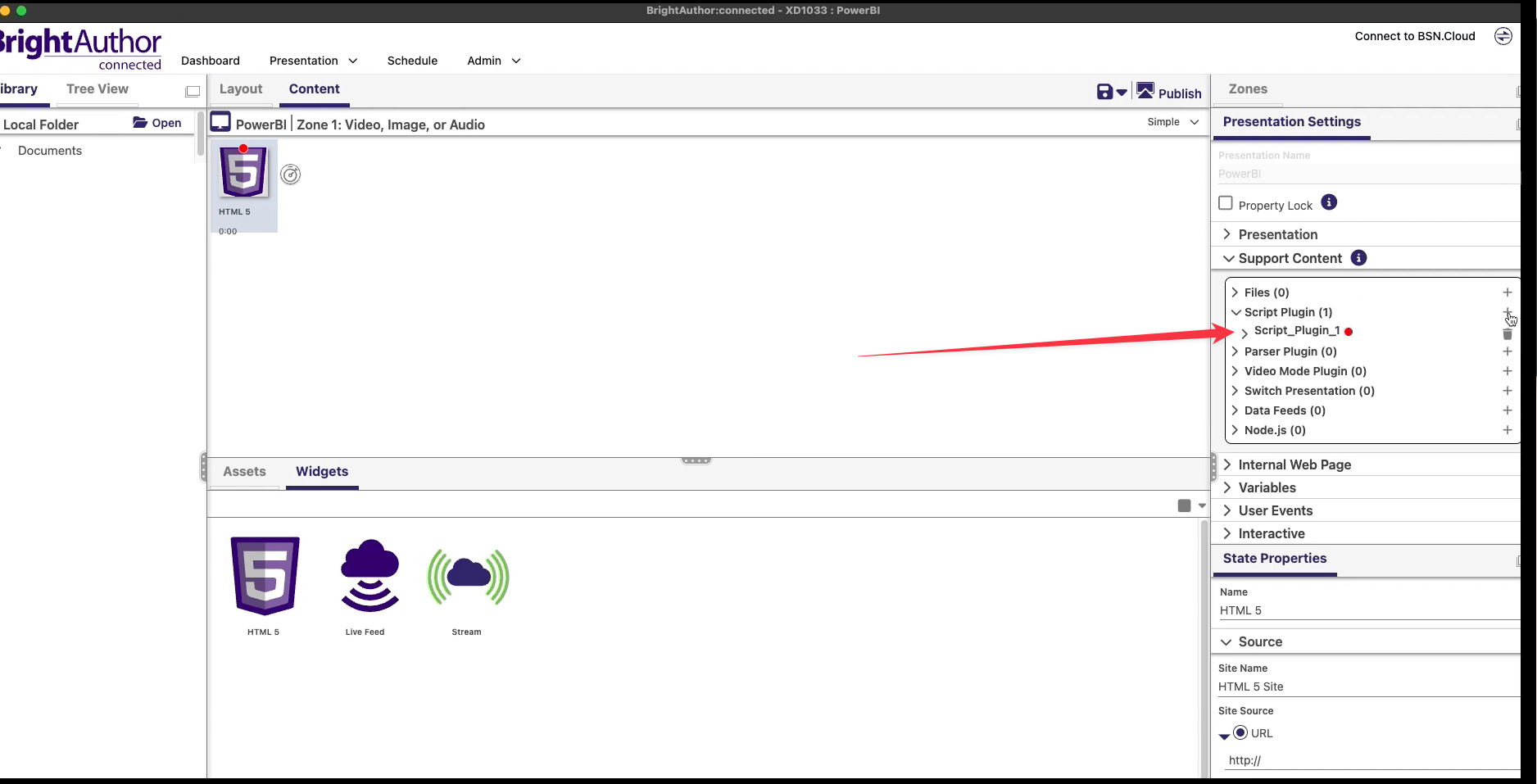
In BA Connected
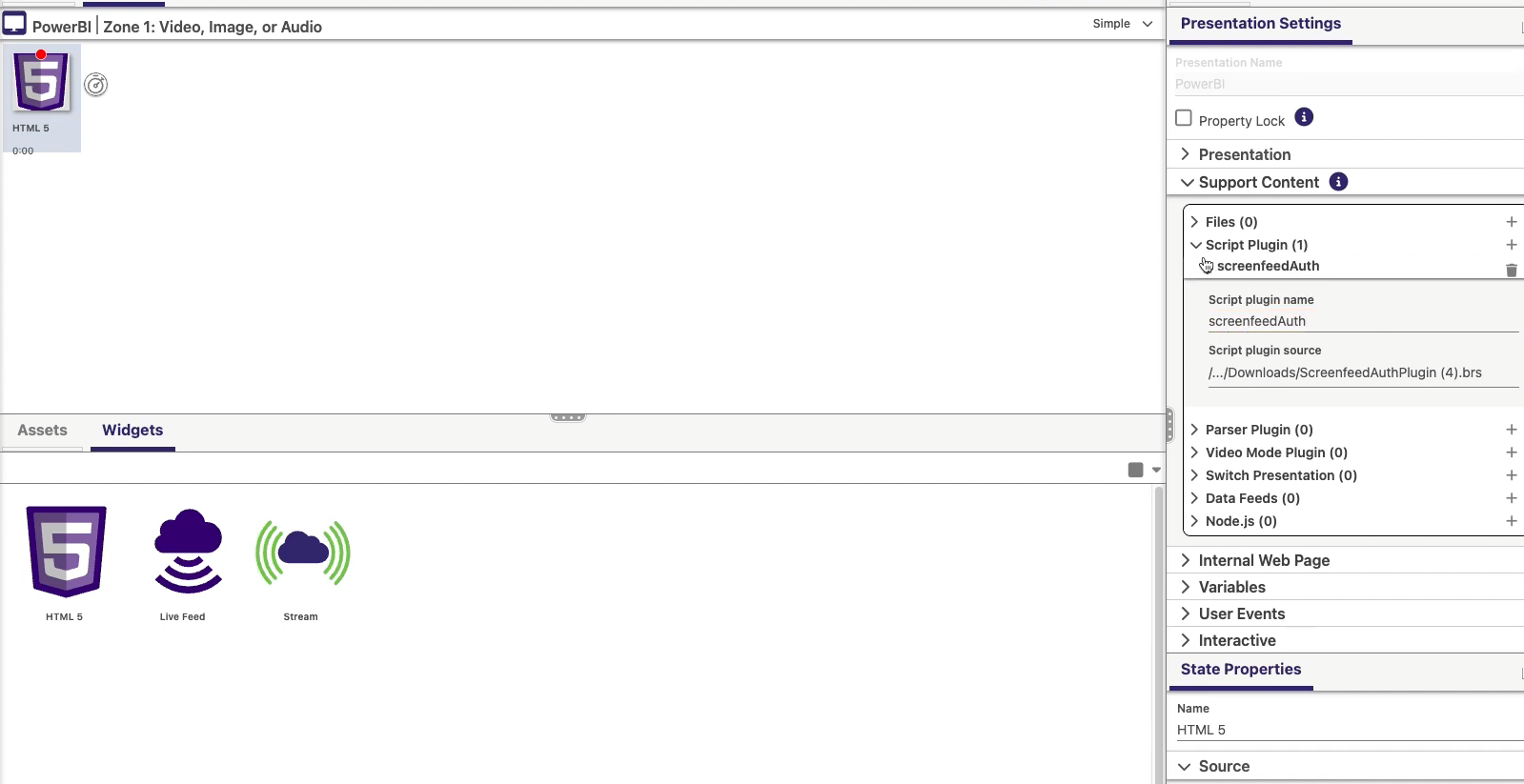
Add an HTML widget to your presentation. Then choose support content, Script plugin and choose the download screenfeed auth plugin from the file picker.
Name the plugin screenfeedAuth
Add a Variable under the variable header. Add in the set Variable name and Value from the feed configuration.
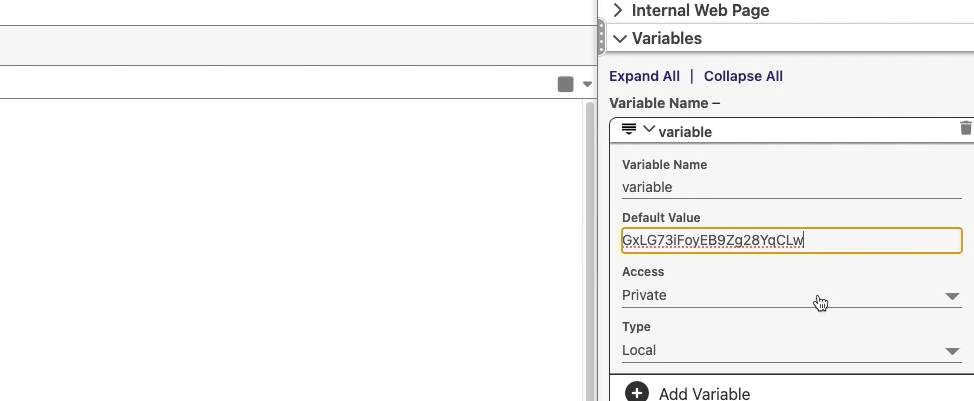
Enter the feed/playlist URL in the HTML widget URL field.
Broadsign authentication requires you to set a content variable name and value.
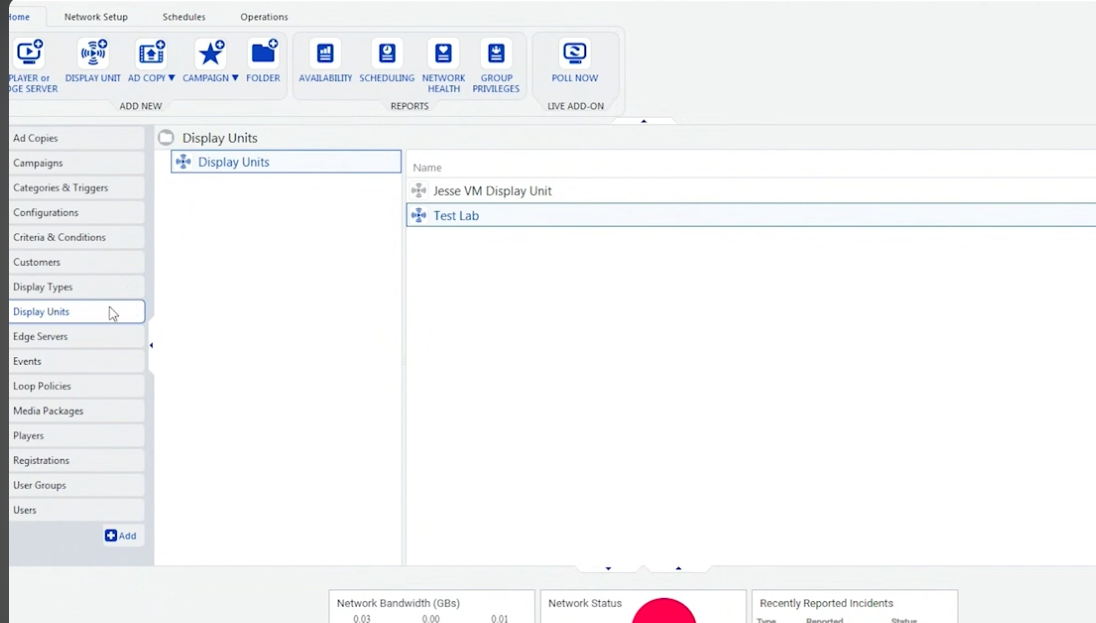
In Broadsign select a display unit.
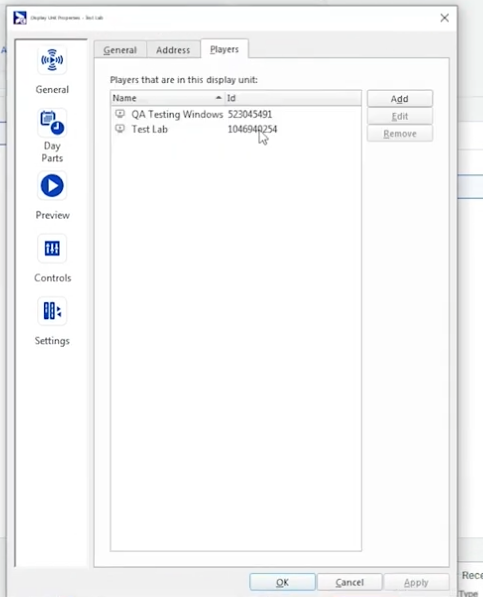
Select the player
Under the variables tab, click add on the left and enter in a name and value matching the config.

Generic option allows you to come up with your own custom JavaScript to retrieve a secret value that you set in your player management software.
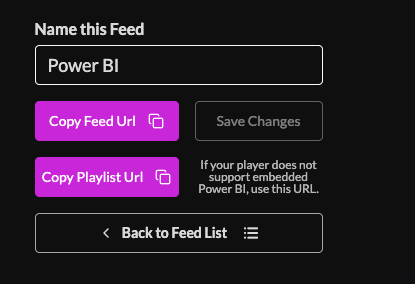
23. When Clicking "Create Feed". Even without a authorization you have the option to choose feed or playlist url. Feed url will render the report directly on the player, this requires Chromium version 110 at minimum or a similar web engine/browser. If you have a lesser web engine or browser select the playlist url.
Support available between 9:00am and 5:00pm (CST-06:00), Monday through Friday


