How to configure a Google Trends for your digital sign
1. Begin configuring your Google Trends feed from the content menu by selecting the Google Trends tile
.
2. Set a custom name and click "Customize This Feed".
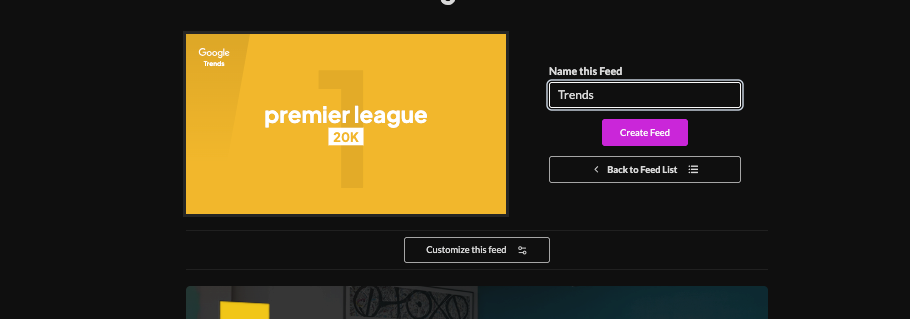
3. Show trends for a specific country

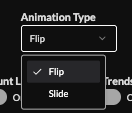
4. Set animation type for the trends tiles.
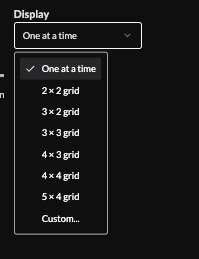
5. Display a grid vs. single post
6. Hide rank, count, trends and/or gradient

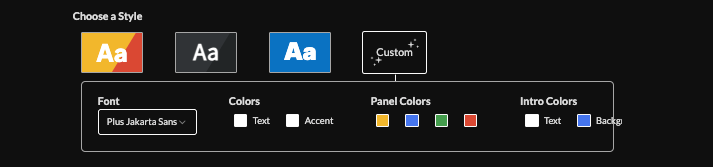
7. Choose a style (Preset or Custom) to adjust fonts and colors.
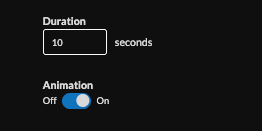
8. Set the duration (default 10s), enable/disable animation
9. Set an intro style, background, and message. Learn more about the intro options from this link. www.screenfeed.com/support-articles/intro-options

10. Set delivery method (HTML media, RSS, direct URL, Json data)Learn more about advantages to each delivery method here www.screenfeed.com/support-articles/delivery-methods-available

11. Click "Create Feed".
Support available between 9:00am and 5:00pm (CST-06:00), Monday through Friday


