How to configure a Calendar Feed with your Google calendar for your digital sign
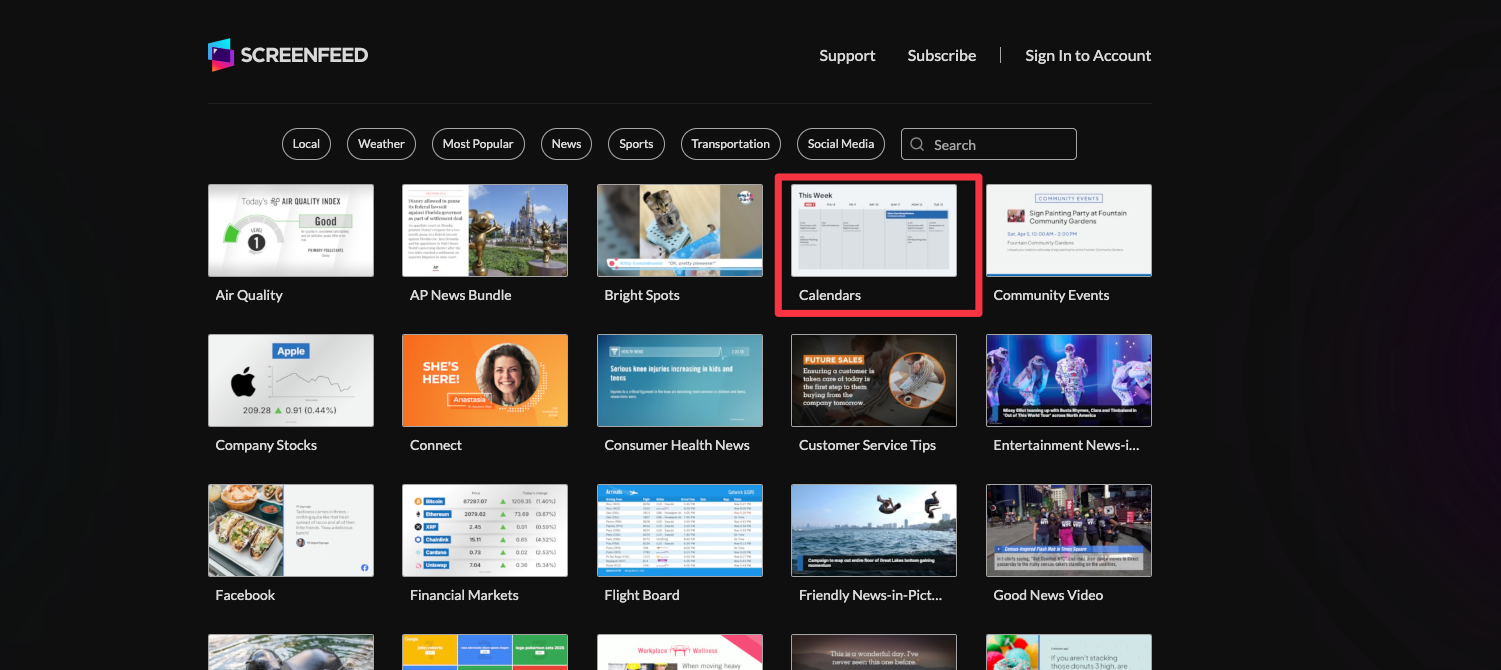
2. Since calendar feeds use your calendar data you are required to sign in to a Screenfeed account to continue creating a feed. Click continue to sign in or create an account.
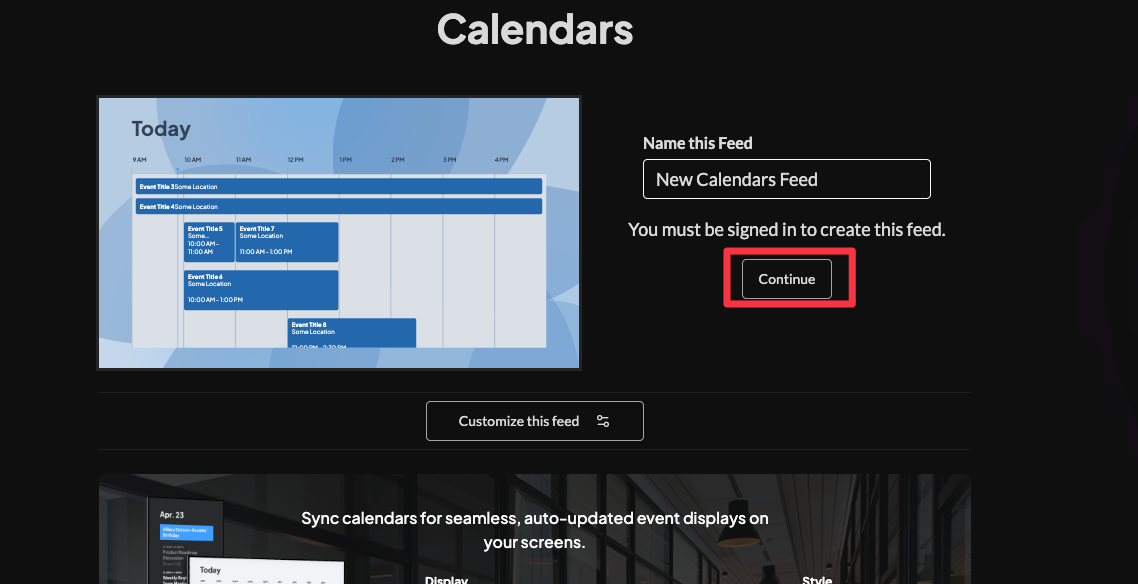
3. A model window will open click either the sign in or create account buttons to get signed in to your account.
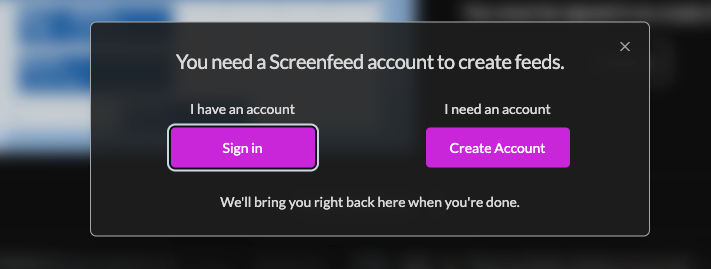
4. Set a custom name for the feed on the right, then scroll to continue customizing the feed
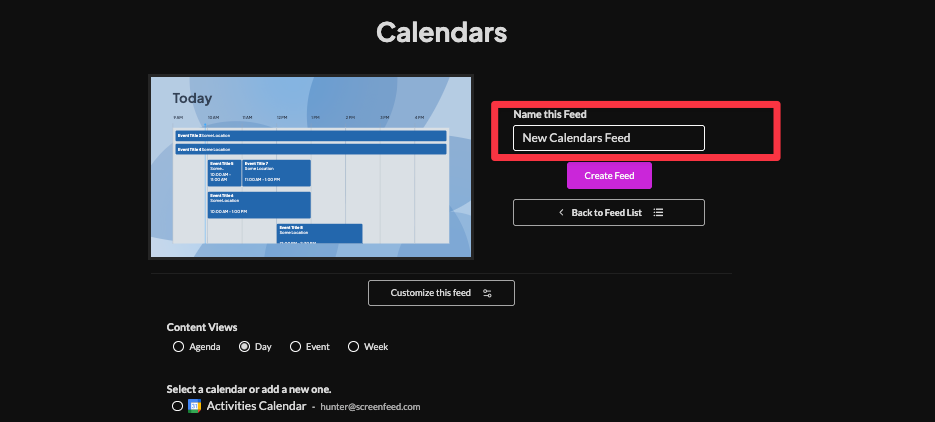
5. Select your content view, you will see the preview adjust in the left corner to match your configuration (feed supports one view at a time).

6. Click the "add a new Calendar" button,

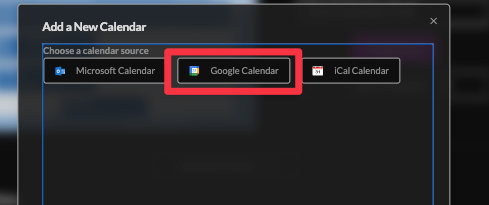
7. Select "Google Calendar,"
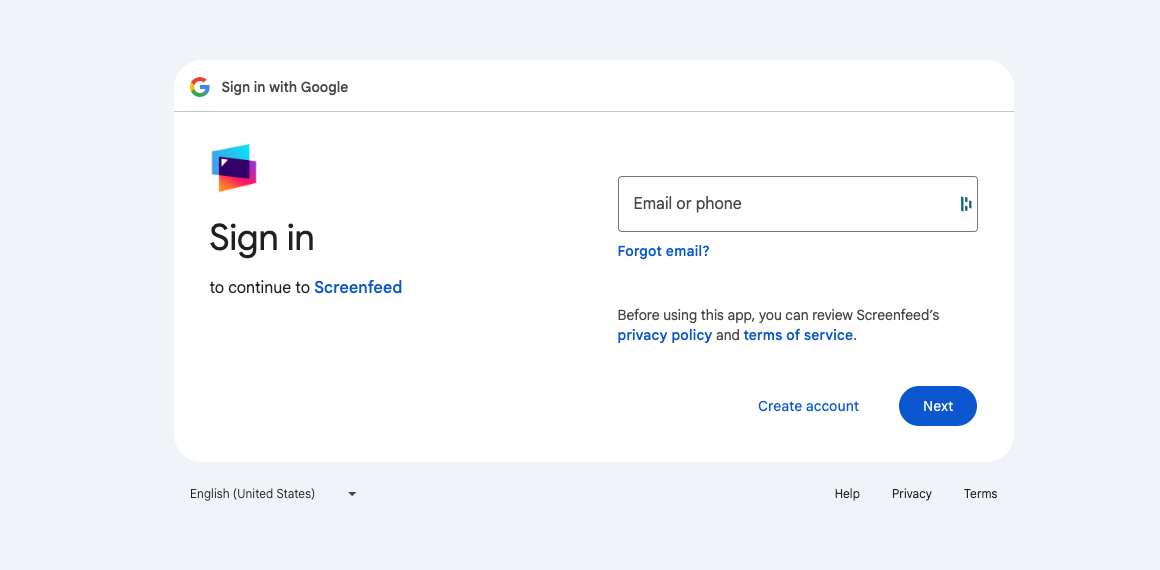
Sign in using your credentials. This uses Google authentication, including any two factor prompts set up on your google account.
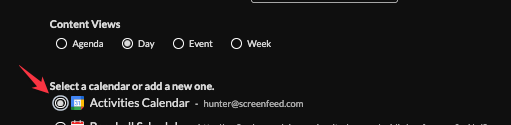
8. Select the calendar you want to appear in the feed
9. Optionally Select a time zone for your feed.

10. Choose a style from Preset Style buttons or the Custom Style button to adjust fonts, time, colors, and time frame.
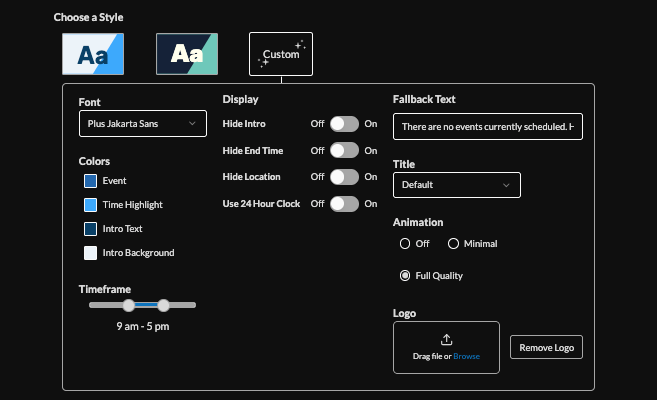
11. Toggle buttons to hide the animated intro, event time, or location, or to enable a 24-hour clock.
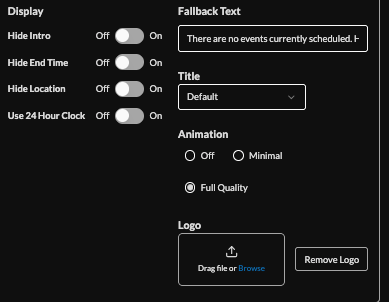
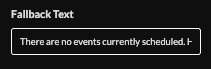
12. Edit the "Fallback text" box to set a custom message if no events are available.
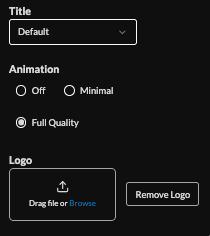
13. Toggle the title (default, short date, or custom), optionally upload a logo, and adjust animation quality (HTML only).
14. Select the language to adjust automatic titles and day names.(This does not translate event contents)
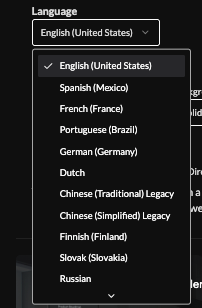
Available Languages are English, Spanish,French, Portuguese, German, Dutch, Chinese(Traditional) Chinese(Simplified) Finnish, Slovak, Russian, Czech, Croatian, Japanese, Italian, Danish, Norwegian Bokmål, Swedish
15. Set an intro style, background, and message. Learn more about the intro options from this link. www.screenfeed.com/support-articles/intro-options

16. Select the delivery method (HTML media, RSS, or direct URL) and click "Create .Need help picking a delivery Method Learn more about advantages to each delivery method here www.screenfeed.com/support-articles/delivery-methods-available
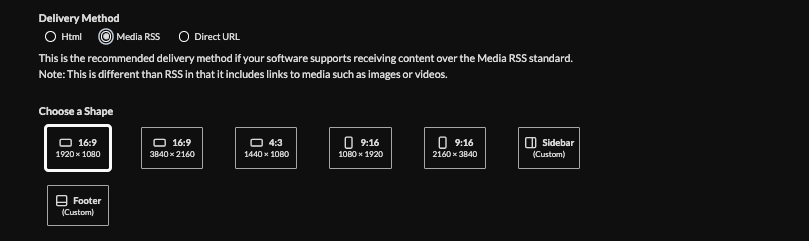
17. Click “Create Feed” to create your feed
Support available between 9:00am and 5:00pm (CST-06:00), Monday through Friday


